Menu Close

Grading Submissions

​Overview

This documentation will show you how to grade a submission within the Assignment tool that is not using the GradeMark/Markup feature.  If you would like to learn more about the GradeMark/Markup feature, please read the Markup page.


Instructions

Step 1. Go to your course homepage and click on Assignments from within the Assessments drop-down menu.
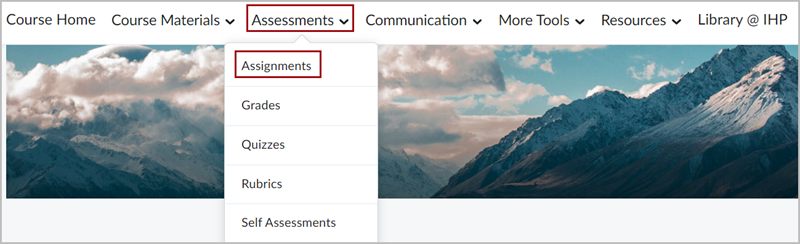
D2L Brightspace Navbar with the Assessments dropdown menu expanded out. There is a red box around the "Assignments" option in the dropdown menu.

Step 2. Click on the Assignment folder you would like to grade.

List of two assignment folders in the Assignments tool, titled "Upload 1" and "Upload 2". A red box surrounds the links for both assignment folders.

Step 3. Select either the Student Name or Assignment Submission file to open their submission.
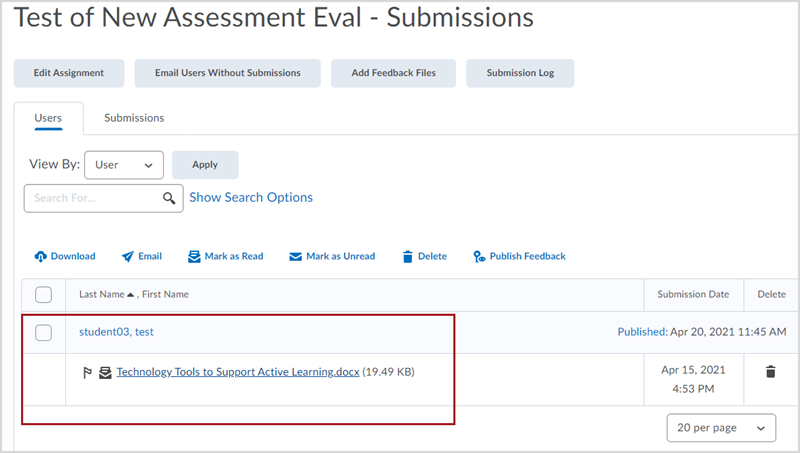
Submissions page for an Assignment submission folder, showing a red box around a submission titled "Technology Tools to Support Active Learning.docx" by "test student03"


Example

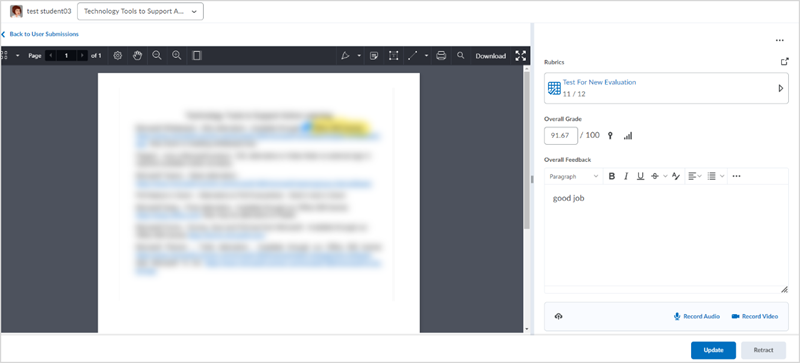
Grading interface for a submitted assignment in D2L Brightspace. The left side of the page shows the document, blurred in this image. The right side shows a panel with options to fill out a rubric, enter an Overall Grade, and provide Overall Feedback. There are buttons for "Update" and "Retract" in the bottom right corner

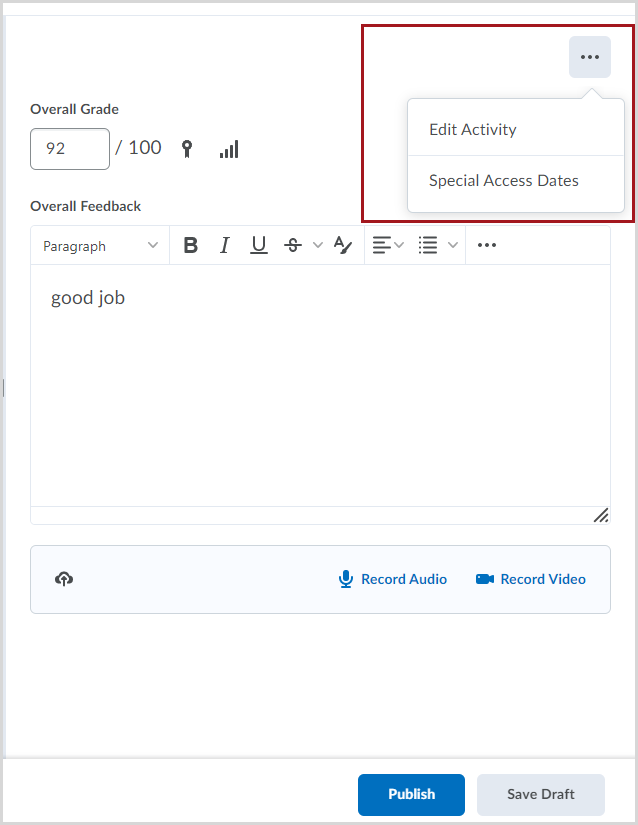
Once you have finished reading the student’s submission, you may enter a score and feedback. You may also select the ellipses to access the Edit Activity or Special Access Dates.
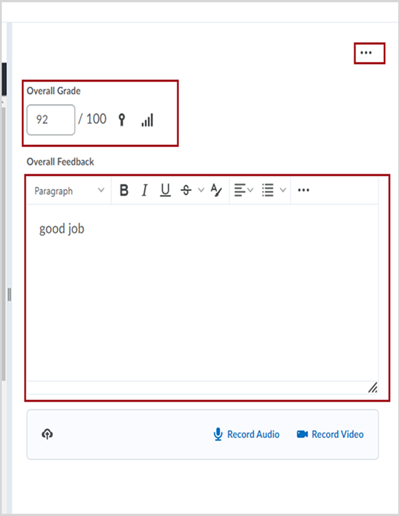
Right-side panel for a submitted assignment in D2L Brightspace, showing red boxes around options to select an ellipses, enter an "Overall Grade", and enter "Overall Feedback"

Right-side panel for a submitted assignment in D2L Brightspace, showing a red box around the expanded ellipses dropdown menu, which displays the options of "Edit Activity" and "Special Access Dates"

If you have a Rubric associated with this Assignment, click the Assess All Rubrics icon to open the Rubric.  The Rubric pane will open, and you will be presented with a set of sliders.
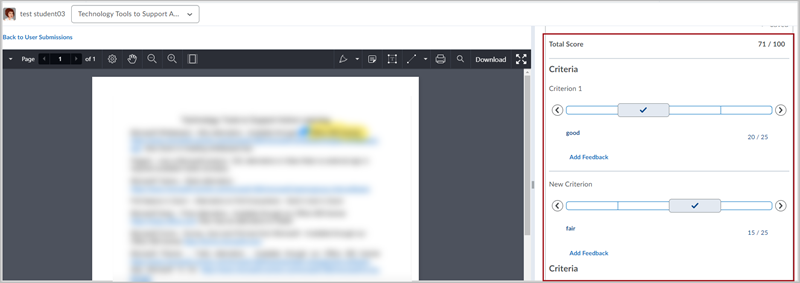
Grading interface for a submitted assignment in D2L Brightspace. The left side of the page shows the document, blurred in this image. The right side shows an expanded rubric with the ability for the instructor to rate two criteria across four levels.

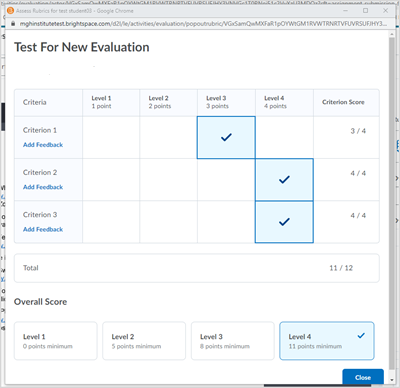
You may also select the Rubric Pop-out icon and the Rubric will open in a new window.
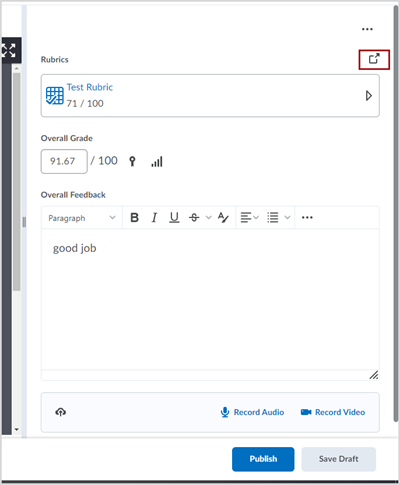
Right-side panel for a submitted assignment in D2L Brightspace, showing a red box around an icon that will open the rubric interface in a new window. The icon is a square box with an arrow pointing up and to the right.

Rubric titled "Test for New Evaluation" opened in a new window. The rubric has three criteria and four levels. The rubric has a score of 11 out of 12 and is "Level 4" for the Overall Score.

Any score given in the Rubric will automatically be sent to the Assignment score.

  • If you wish, you may leave feedback for the student in the Feedback area.
  • You may also leave feedback by selecting the Upload a file icon, Record Audio or Record Video. 
  • Publish to immediately send the grade to the Grade Book or select Save Draft if you would like to save your work and finish grading later.

Read more about Annotating In Assignments without Turnitin.

​