Overview
GradeMark is a tool within D2L Brightspace that allows an instructor to add comments within the body of the paper, point out grammar and punctuation mistakes and enter a grade for the paper that is automatically saved into D2L Brightspace. To use this tool, GradeMark must be enabled on the Assignment folder.
Instructions
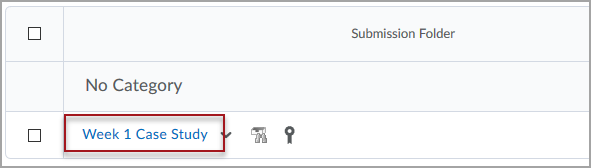
Click on the name of the Assignments Submission Folder.
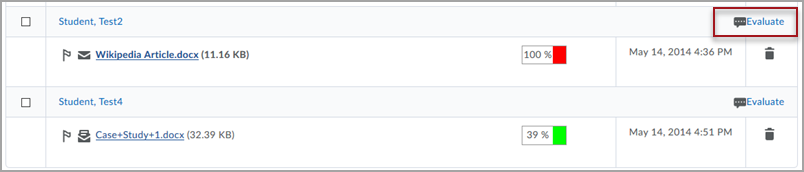
Click Evaluate to the right of the student’s name to enter their submission.
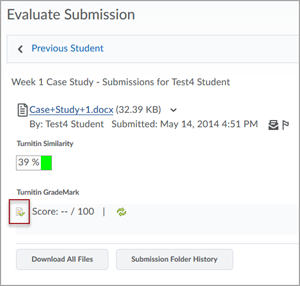
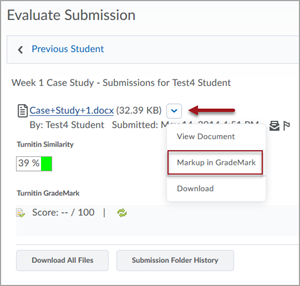
To enter the Markup tool click the Markup Document icon or select from the drop down on the Evaluate Submission screen. This will launch the GradeMark tool in a new window or browser tab.
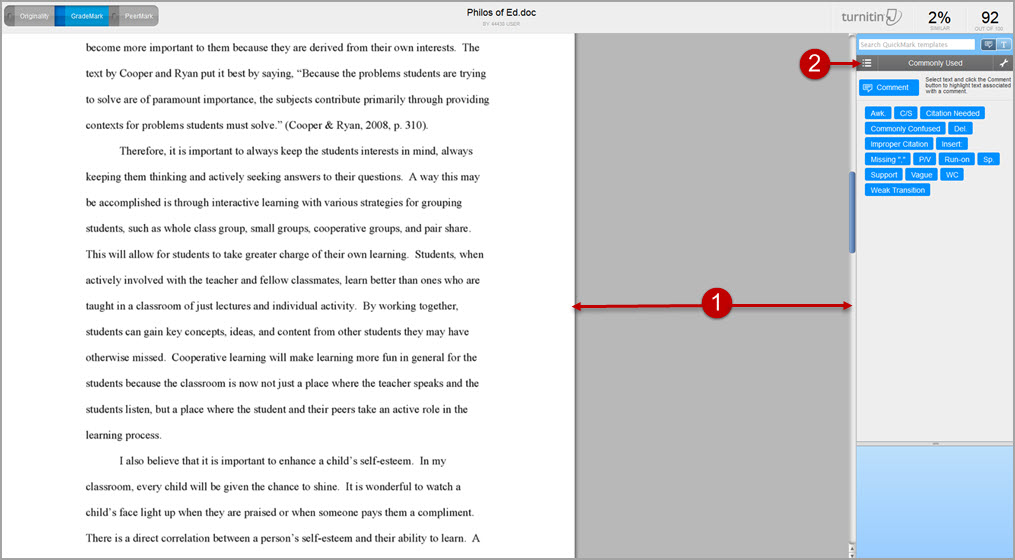
- The GradeMark page is comprised of two panes. The left pane displays the student’s submission. The right pane lists all of the available QuickMark comments that can be used.
- The QuickMark comments can be selected by category by clicking the menu icon in the upper-left portion of the QuickMark comments pane.
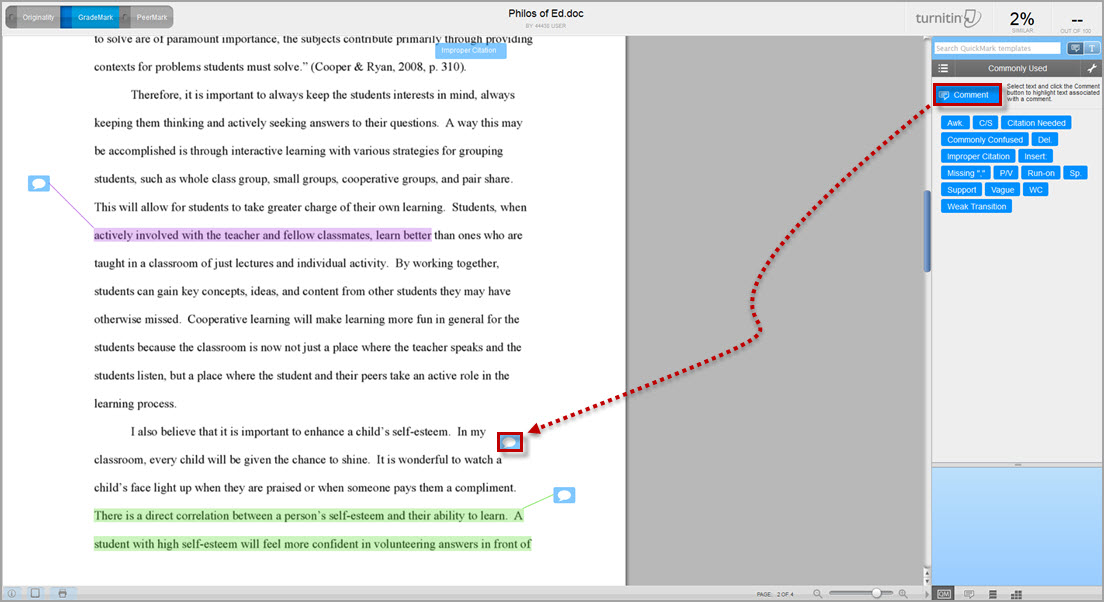
To Markup a student submission, drag & drop a QuickMark from the pane on the right onto the document pane to the left. You can also highlight text on the left, click on it and add a comment to create color coded comments.
Once you have finished marking up the document, you can optionally input a score in the upper right hand corner of the GradeMark page to use in D2L Brightspace. All work done in the GradeMark tool is saved automatically.
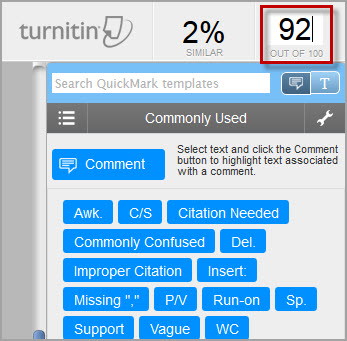
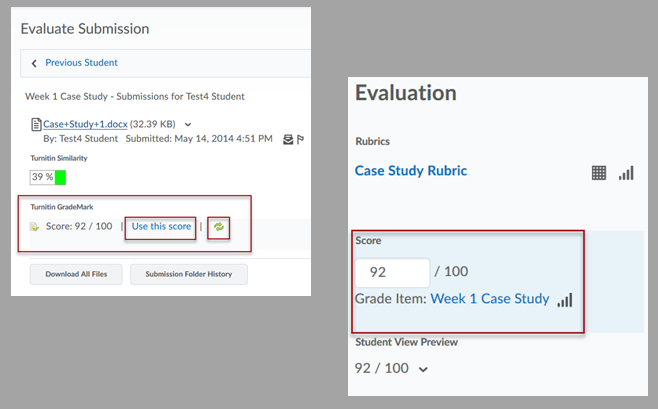
From the D2L Brightspace Evaluate Submission screen, a good check to see if GradeMark has saved all work correctly is to use the green Refresh button. This will then bring in the score you put into the upper right hand corner of the GradeMark screen. You can choose to use this as the official grade by clicking the Use this score link. If you choose to use the GradeMark score it will populate the score box to the right, otherwise you will need to manually enter the grade here.
To publish the feedback or save the feedback in draft status, please refer to the Grading Submissions page.