Overview
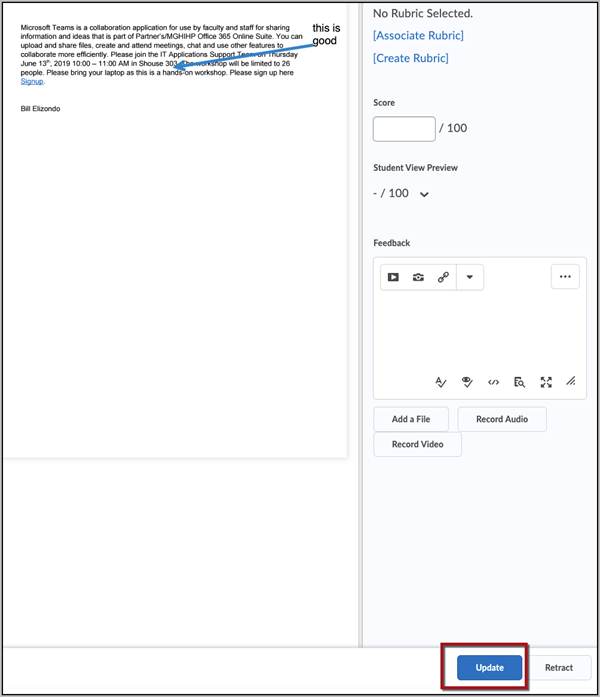
Instructors can now annotate student work directly within the Assignments tool using the Annotation toolbar. The Annotation toolbar will appear at the top of the page when you view a submission. Annotations allow you to markup student work and provide detailed comments online. Features of the Annotation tool include highlighting, striking through, and underlining. You can also highlight and comment on a specific portion of an online submission or draw free hand on the assignment.
Previously, instructors had to run papers through Turnitin and use Turnitin’s GradeMark to annotate papers online. GradeMark and Turnitin are still available but are no longer necessary for annotation.
This feature is now available and is automatically turned on for your course.
Using Annotations
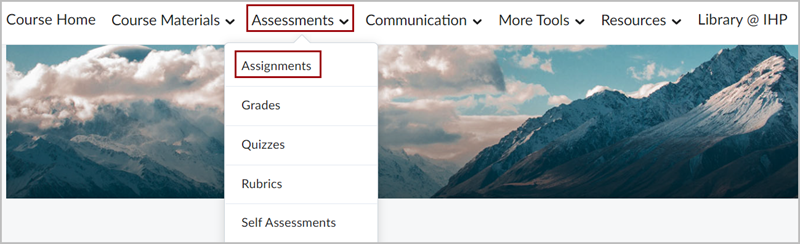
Go to your course homepage and click on Assignments from within the Assessments drop-down menu.
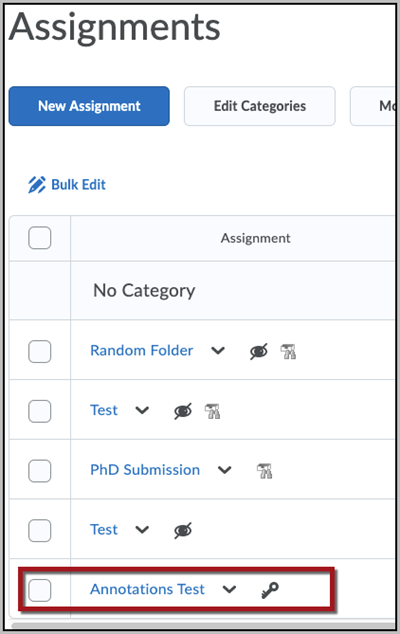
Select the assignment that is to be assessed.
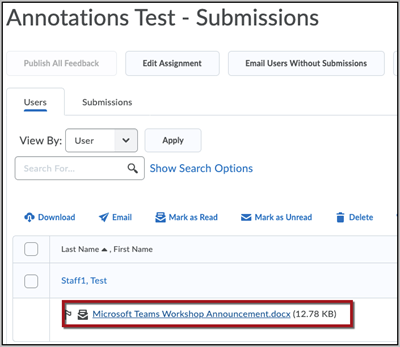
The Assignment Submission page will open, Select the submission to be assessed.
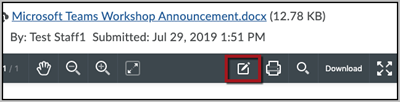
Select the Annotation Tool.
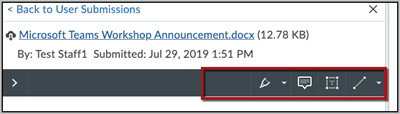
Begin annotating using one or more of the tools available.
Select Update to save the Annotations.