
Overview
Zoom is integrated into D2L Brightspace to make creating, running, and recording class sessions as easy as possible. This page describes the integration, the steps needed to set up a meeting, and how to manage your Zoom cloud recordings.
What you need to know…
- Instructors will need a Zoom account on the MGB University license in order to use the D2L Brightspace Zoom integration. To create an account, simply access Zoom through D2L Brightspace. Zoom will auto-provision you an account and send you an email to confirm your account. Alternatively, you can sign up for an account https://mghihp.zoom.us/signup.
- Students DO NOT need to have a Zoom account to access Zoom through D2L Brightspace. Only instructors are required to have a Zoom account. However, any student who has an @mghihp.edu email address will get an account auto-provisioned for them when they access Zoom through D2L Brightspace. Students without an @mghihp.edu email address will not get an account, but will have no problems participating in meetings.
- Instructors and students should schedule and access Zoom through D2L Brightspace whenever possible. This helps ensure that everyone is logged into their account so that features like breakout rooms and polling work consistently.
- By default, cloud recordings done in meetings scheduled through D2L Brightspace must be published before students are able to view them. Please see the steps in the Managing your Cloud Recordings section on this page.
- Because of the limited amount of cloud storage available within Zoom and the number of recordings that are saved per semester, cloud recordings are available during the current semester only. More information on this policy can be found on the Zoom Cloud Recording Retention Policy page
Instructions
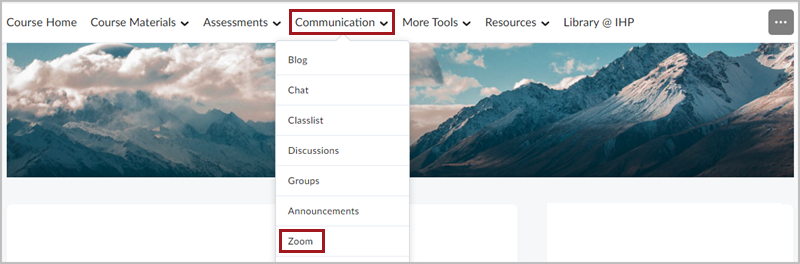
Setting Up a Zoom MeetingSelect the Communication tab in your course, then select Zoom from the drop-down menu.
Click the "Schedule a New Meeting" button.

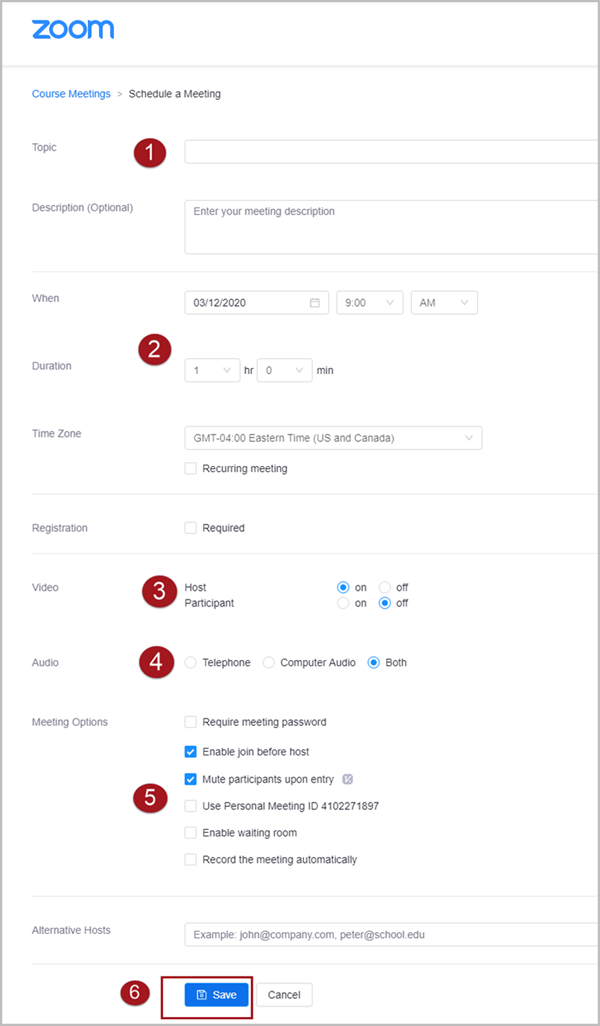
On the "Schedule a Meeting" screen, select the following parameters:
- The Topic/Name of your session.
- The Date/Time & Duration of your session.
- Whether the host and/or participant webcam is activated automatically upon entry.
- The Audio options for your session. (click here for more details)
- Any additional options for your session.
- Click Save when finished.
The new Meeting/Session will now appear on your Zoom Upcoming Meetings list. To start the Meeting/Session click the Start button from the Meeting/Session that you want to launch.

The Zoom Meeting/Session will now start. If this is your first time using Zoom, the desktop application will automatically download to your computer prior to launch.
Managing your Cloud Recordings
After you end a meeting that was cloud recorded, your recording will process on Zoom's server. When the video is done processing, you will receive an email letting you know that the video is ready to view. When set up through D2L Brightspace, cloud recordings can be made available to students through the Cloud Recordings tab in the Zoom integration.
If you want students to be able to view the recording, you must select the Publish Button. This will allow the students to see and select the recording in D2L Brightspace.
By default, students are not able to download recordings. If you want to allow downloads, please see our entry on making Zoom recordings downloadable.
Please also remember that cloud recordings are available during the current semester only per the Zoom retention policy on cloud recordings.
