
Overview
OriginalityCheck enables you to monitor Assignment folder submissions and identify potential cases of plagiarism by automatically comparing submissions to an online database of original content. You can then view Originality Reports which highlight key areas, show a breakdown of matching sources, and provide direct links to the matching content.
Once a file has been submitted to an Assignment folder with Originality Checking enabled, the Originality Report will take approximately 30 minutes to be completed. When the report is available you may view the results, grade and leave feedback.
Files that are compatible with OriginalityCheck are MS Word (.doc/.docx), WordPerfect (.wpd), PostScript (.eps), Adobe Acrobat (.pdf), HTML (.html), Rich text (.rtf) and Plain text (.txt).
Instructions
Go to your course homepage and click on Assignments from within the Assessments drop-down menu.
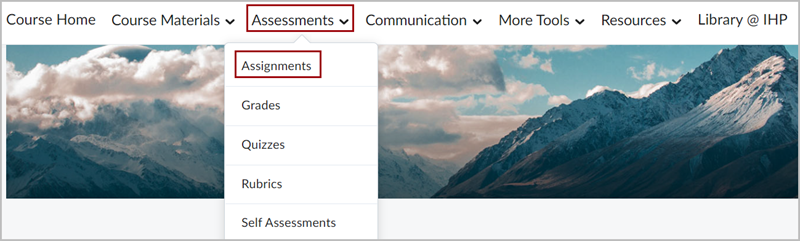
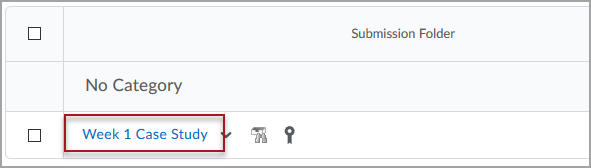
Click on the Assignments Submission Folder.
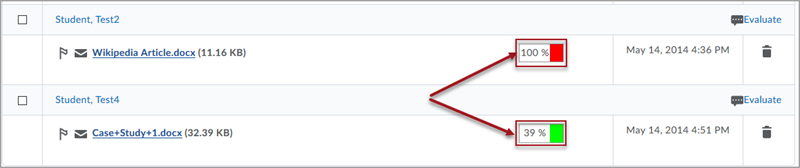
Once the student has submitted an assignment to the submission folder you will be able to see the date & time of submission, the Originality Report along with any comments left by the student. The Originality Report can be accessed by clicking on the results icon. To grade and leave feedback, refer to the Grade a Submission page.
A lower percentage rating indicates that the content is original. The higher the percentage, the more likely content has been plagiarized or the report is picking up citations.
The left pane displays the submission text using colored highlights to draw attention to the matching content. The right pane, under Match Overview, lists all of the matching sources, including the percentage of text that matches and a link to online content.
