
Overview
D2L Brightspace has a variety of options for setting Start, Due, and End dates on your assessments (i.e., Assignments, Discussions, and Quizzes). These date options provide you flexibility on when students can access and submit assessments. This page provides an explanation of the different date settings in D2L Brightspace and how they impact students.
To learn about how these activity dates can be added to the course calendar tool, please see our Adding Dates to Your Calendar page.
Start, Due, and End Dates
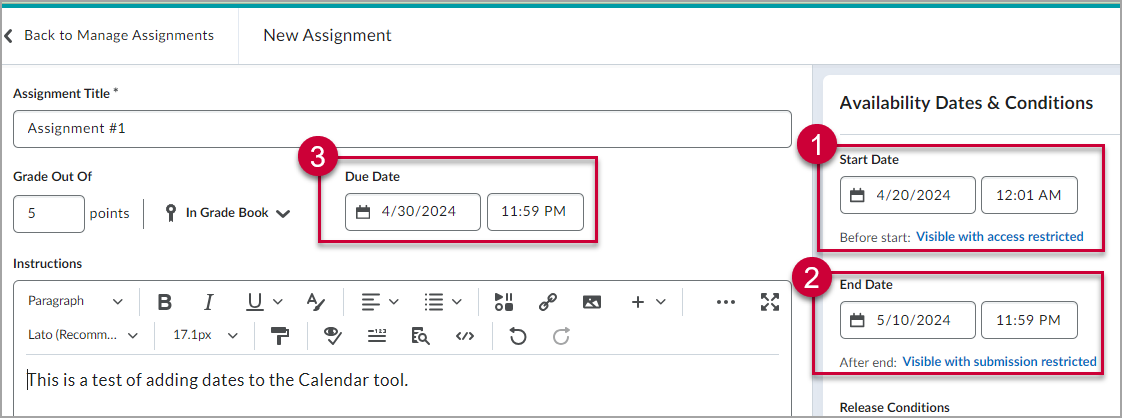
Activities in D2L Brightspace can have a Start Date, an End Date, and (in most cases) a Due Date.
- A Start Date defines when an activity becomes available to learners to both view and submit to. The information available before the start date is determined by the visibility settings.
- An End Date defines when an activity becomes unavailable to learners. The information available after the end date is determined by the visibility settings.
- A Due Date defines when a submission to an activity will be marked as late. A Due Date does not prevent students from viewing or submitting to an assessment activity. It is only used to flag submissions that are submitted after the deadline.
A note about Due Dates
- Quizzes can have a Due Date, but it is typically not necessary. Most of the time, having a Start Date, End Date, and time limit is sufficient.
Visibility Options
When setting a Start Date or End Date on an Assignment or a Discussion, you have three additional options to choose from. These options determine how much of the assignment or discussion students can see before the Start Date or after the End Date.
- Visible with access restricted – Learners will see the Assignment or Discussion in the list, but cannot access the description or attachments associated with it. They also cannot submit anything.
- Visible with submission restricted – Learners will see the Assignment or Discussion in the list and can access the descriptions and/or attachments associated with it. However, they cannot submit anything.
- Hidden – Learners will not see the Assignment or Discussion in the list.
To adjust the Visibility setting, click the “Before start” or “After end” link associated with the Start Date and End Date respectively.
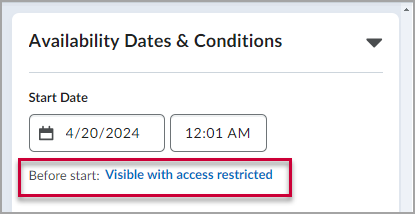
Then select the visibility setting that you want from the list and click the blue Done button.
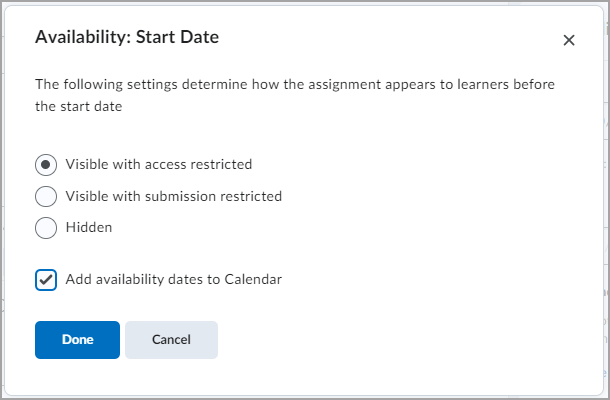
Figure. The visibility options shown on the Availability: Start Date popup window.
Two notes about visibility settings
- These visibility options are not available for Quizzes. They are only designed for the Assignments and the Discussions tools.
- The Start and End Date visibility settings can be different. For example, you could have an Assignment that was completely “Hidden” before the Start Date but “Visible with submission restricted” after the end date.