
Overview
When setting up assessments in your course, you may want dates relevant to those assessments to appear on your course calendar. This page describes how important dates (i.e., Start Date, End Date, Due Date) are added to the calendar in D2L Brightspace.
To learn more about the various date options in D2L Brightspace, please see our Understanding Date Options page.
Due Dates
When you set a Due Date on a Quiz or Assignment, that Due Date will be added to the calendar in D2L Brightspace automatically. No other action is needed on your part.
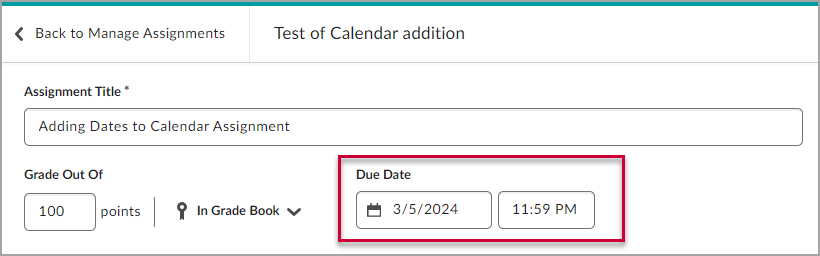
Figure. A due date being set when creating an Assignment in D2L Brightspace.
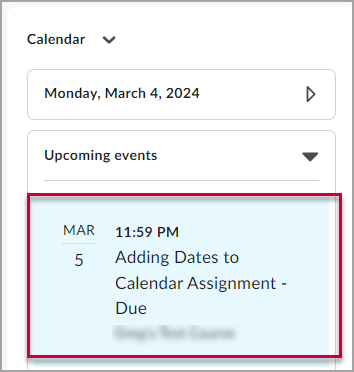
Figure. A Due Date as it appear in the Calendar tool on D2L Brightspace.
Start Dates and End Dates
When set, Start Dates and End Dates are NOT automatically added to the calendar tool. If you would like a Start Date or End Date to appear on the calendar tool, you need to check the “Add availability dates to Calendar” checkbox.
For Assignments and Discussions, this check box can be found when adding your Visibility settings for the assessment.
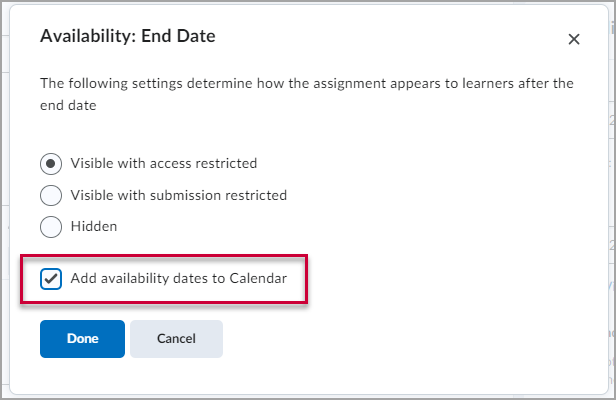
Figure. The “Add availability dates to Calendar” option in the visibility settings for Assignments and Discussions.
For Quizzes, this check box can be found right underneath Start Date and End Date fields when setting up a Quiz.
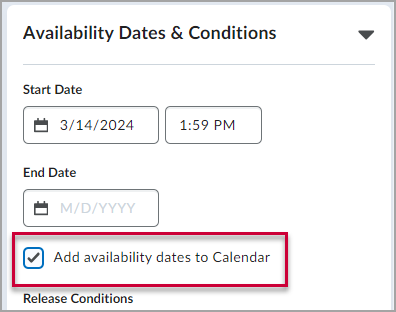
Figure. The “Add availability dates to Calendar” option in the Quiz setup interface.
Once you enable the “Add availability dates to Calendar” option, you will see both the Start Date and End Date in the calendar if they are both set. This will be in addition to the Due Date, making it possible for the Start, End, and Due Dates to all be visible on the calendar.
Note – If you have a Start Date and End Date set, they will both appear on the calendar. There is no way to show just the Start Date or just the End Date.
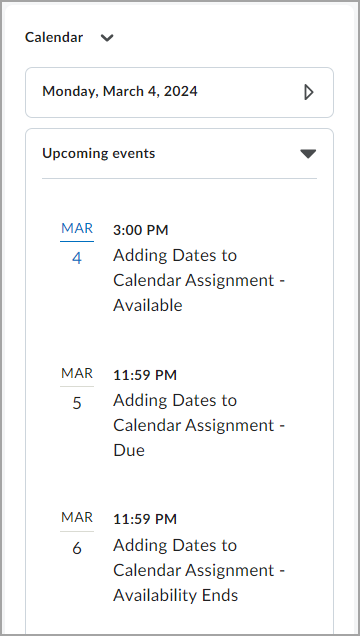
Figure. A Start Date, End Date, and Due Date for a single assignment shown in the D2L Brightspace calendar tool together.