Menu Close

Sorting the Classlist or Assessments by Group

Overview

There may be times when you want to filter D2L Brightspace tools based on group (e.g., seeing how those within a group performed on specific assessments). Throughout the system, you can use the filtering option to view the Classlist and various assessments, including Assignments, Quizzes, and Grades, by group.

The steps below show how to sort Grades so only one group of students is displayed, but the same steps apply in Assignments, Quizzes, and the Classlist tools.


Instructions

Step 1. Select Grades from the Assessments dropdown menu.
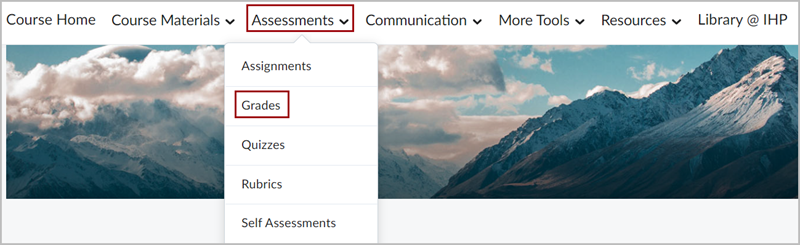
D2L Brightspace Navbar with the "Assessments" dropdown menu expanded out. There is a red box around the "Grades" option in the dropdown menu.

Step 2. In the View By drop-down, select Groups (1) and then click Apply (2).
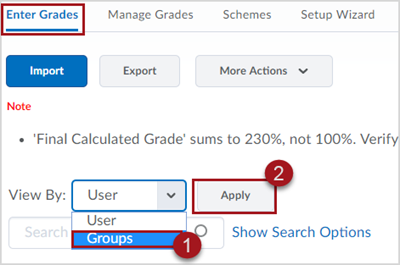
Labeled screenshot of Enter Grades screen in D2L Brightspace showing the "View By:" dropdown menu with the options of "User" and "Groups". There is a red box around 1. the Groups option. To the right of the View By menu is 2. a button labeled "Apply"

Step 3. Then, from the Groups drop-down (1), select the group you wish to view and click Apply (2).
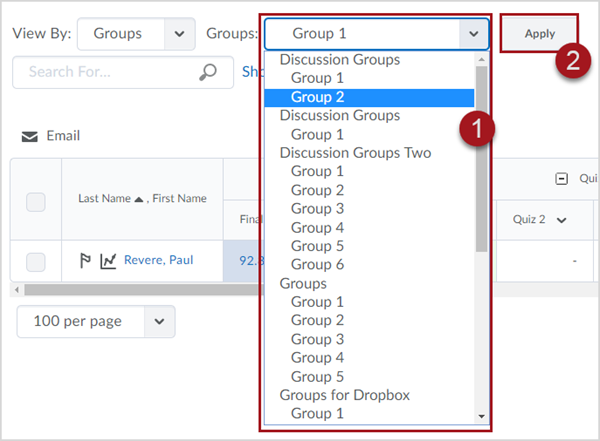
Labeled screenshot of the Enter Grades screen with the "View By" dropdown menu set to "Groups". To the right of that is 1. a "Groups" dropdown menu showing a list of groups in different categories such as "Discussion Groups". To the right of the Groups menu is 2. a button labeled "Apply"

Now you will only see the submissions or grades for the students enrolled in that Group.

Enter Grades screen in D2L Brightspace showing a tabular view of several grades for a student named "Paul Revere"