Menu Close

Enrolling Users

Overview

If you have already Created Groups and chose not to Auto Enroll users you will have to enroll them manually. 


Instructions

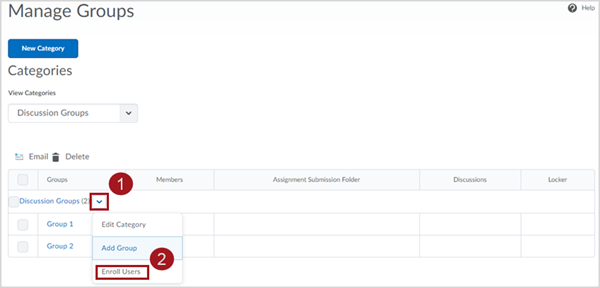
To enroll users manually, navigate to your Group Category,

  1. Click the drop down next to the name.
  2. Select Enroll Users.

Labeled screenshot of the Manage Groups page, showing a group category titled "Discussion Groups" with two groups: "Group 1" and "Group 2". There are red boxes around 1. the caret associated with the "Discussion Groups" category and 2. the "Enroll Users" option in the associated dropdown menu.

To enroll a user in a group, select the check box in the Group Column next to the student name to enroll them in that group. If you have many groups you can have it display one group at a time or you can use the search function to select specific students.
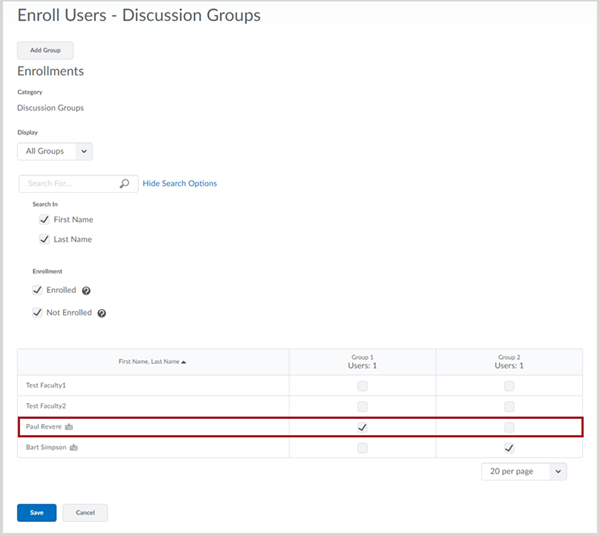
Enroll Users page showing the list of users in the course in a matrix with groups "Group 1" and "Group 2". There is red box around student "Paul Revere" who has been assigned to Group 1 and student "Bart Simpson" who has been assigned to Group 2.

Click Save when done.