
Overview
Before you can use groups to organize your course content and activities, you must first create at least one group category in the Groups tool. There are a number of options available for setting up groups, including settings for manual, automatic, and self enrollment.
Instructions
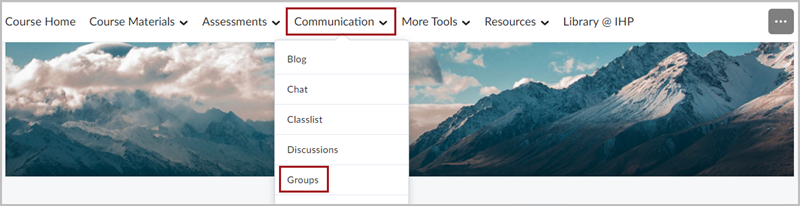
To create groups, first navigate to the Groups tool under the Communications menu.
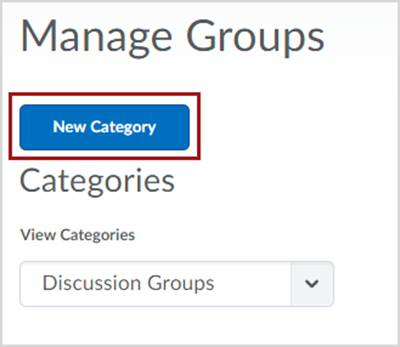
Click New Category.
- Give your group category a Name.
- Put in a Description (optional).
- Select an Enrollment Type from the drop-down list
Enrollment Types:- # of Groups – No Auto Enrollments – Selecting this option creates a specified number of groups, which you will manually add any number of users to through the Enroll Users page.
- Groups of # – Selecting this option automatically creates the minimum number of groups needed and enrolls users. More groups are created when they are needed.
- # of Groups – Selecting this option automatically creates and enrolls users in a specified number of groups.
- Groups of # – Self Enrollment – Selecting this option creates the minimum number of groups needed to accommodate users. Users choose the group they want to enroll in from the Groups page.
- # of Groups – Self Enrollment – Selecting this option creates a specified number of groups, which users enroll in from the Groups page.
- # of Groups of # – Self Enrollment – Selecting this option creates a specified number of groups with a specified number of enrollments per group. Users choose the group they want to enroll in from the Groups page.
- Single user, member-specific groups – Select this option when you want to create journal type groups with a single member. Using this option creates a group with a single user where the first name and last name of the learner is the name of the group.
- Depending on the chosen Enrollment Type, enter the Number of Groups to create, the Number of Users per group, or both.
- Create Workspace allows you to create Discussions and Assignment folders once you create the group. These can also be done later.
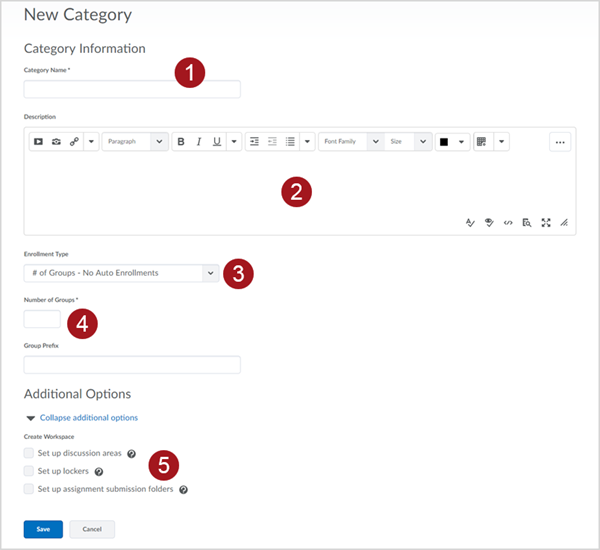
Once finished click Save.
In order for you to utilize the functions of Groups within D2L Brightspace, you will need to enroll students into the groups you’ve just created if you selected the “No Auto Enrollments” option. Click here to learn how to enroll students into the groups.