Overview
Respondus Monitor® is a companion application for LockDown Browser® that uses webcam and video technology to further increase the security of online exams. Students are video and audio recorded while setting up for and during their online exams thru their device’s webcam and microphone. Faculty or authorized staff will be able to review video of any student that is suspected of using unauthorized material during a Respondus Monitor® exam.
 Important
Respondus Monitor® should only be used for high stakes exams (e.g., Midterms and Finals) that are being given remotely and asynchronously. For all other cases, such low-to-medium stakes quizzes, in-person exams, and synchronous exams, please make use of the following options to promote academic integrity.
- Use standard Respondus Lockdown Browser (for in-person synchronous exams) or Respondus Lockdown Browser with Live Instructor Proctoring (for remote synchronous exams)
- Randomize Question Order
- Create Question Pools
- Design Open Book/Open Note Quizzes
What you need to know…
- Students may need to update their Lockdown Browser. Instructions on updating Lockdown Browser can be found on the Respondus help website.
- Any loses of connection or restarts of the Lockdown Browser system will be logged for your review. We recommend that, if you have an enforced time limit on the exam, you set it to “Allow the student to continue working”. This will flag the quiz as late, but give you and the student flexibility should an internet issue occur. That way, a technical issue won’t shorten their time or otherwise inhibit them from finishing.
Instructions
Setting up Respondus Lockdown Browser with Respondus Monitor
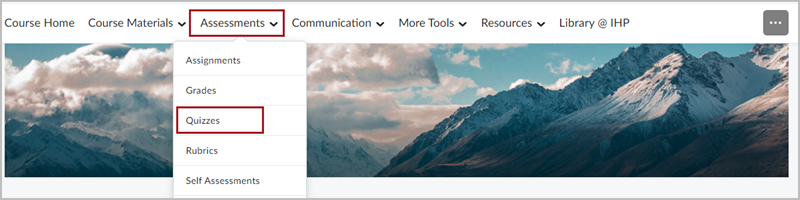
To begin, click on Quizzes from the Assessment menu.
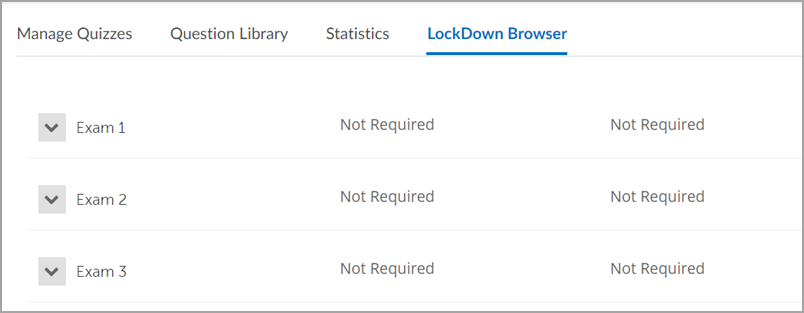
Then, select the LockDown Browser tab to open the Lockdown Browser dashboard. After the dashboard loads, a list of your Quizzes for this course will appear.
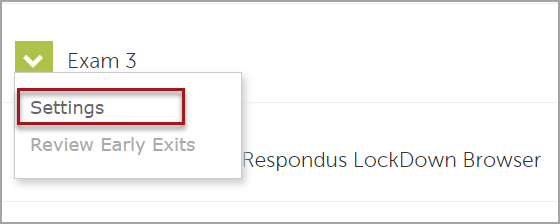
Click the drop-down menu to the left of the quiz name and select Settings.
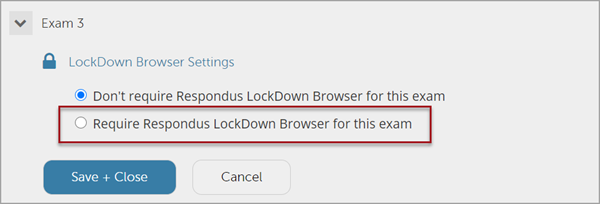
The Settings selection window will appear. Select Require Respondus LockDown Browser for this exam.
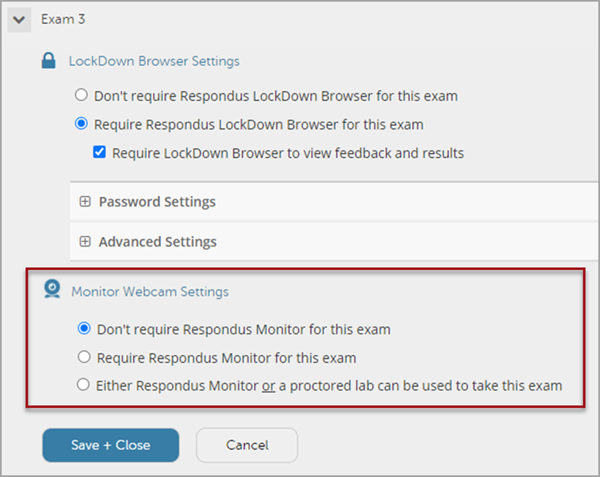
Then, select the Monitor settings required for this exam.
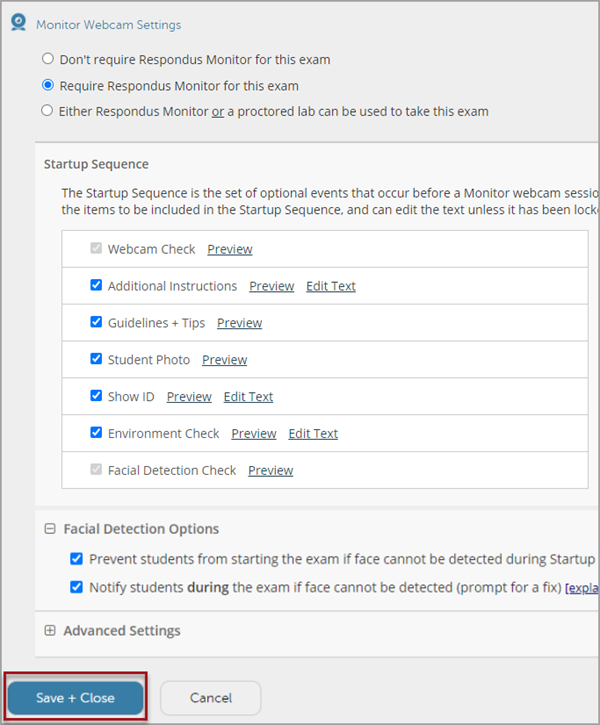
After enabling Respondus Monitor, the Startup Sequence options and Facial Detection options appear. Select the options required then Save and Close.
Reviewing student exam videos
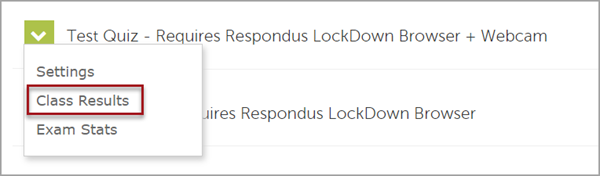
To review the exam videos, go back to the Lockdown Browser Dashboard, select the drop-down next to the exam, and select Class Results.
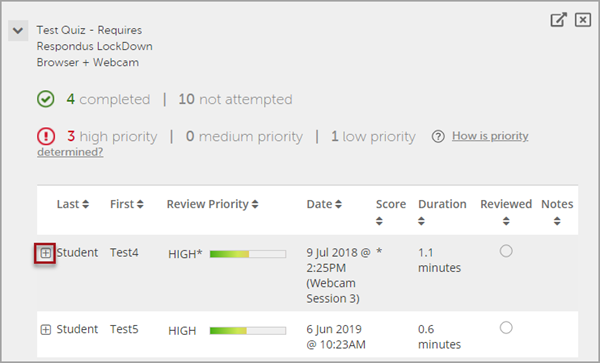
A list of students who have taken the exam will appear. Click the + sign next to a student’s name to review their attempt and the associated video.