
Overview
Respondus Lockdown Browser with Live Instructor Proctoring allows instructors to proctor quizzes and exams over Zoom while students work within Lockdown Browser. This provides a way for instructors to ensure that students are neither accessing other resources on their computer nor referencing external materials (e.g., a textbook, mobile device, another person).
- Setting up Respondus Lockdown Browser with Live Instructor Proctoring
- Administering a Live Proctoring Session
What you need to know…
- This feature is supported on Windows PC and Mac. It is not supported on iPad.
- See our Lockdown Browser Troubleshooting Guide for best practices and common problems & solutions.
- While Live Proctoring is a useful tool, you might also consider other academic integrity techniques such as randomizing the question order, creating question pools, using a strict time limit, and designing open book/notes quizzes.
Instructions
Setting up Respondus Lockdown Browser with Live Instructor Proctoring
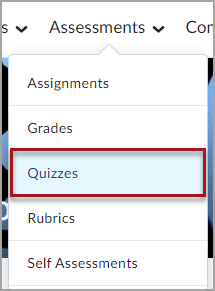
Step 1. To begin, select Quizzes from the Assessments dropdown menu.
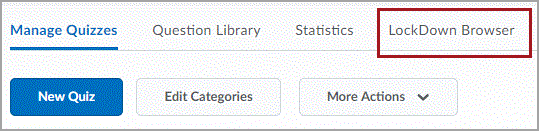
Step 2. Then, select the Lockdown Browser tab to open the Lockdown Browser dashboard.
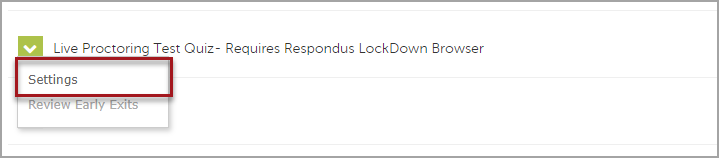
Step 3. After the dashboard loads, a list of your Quizzes for the course will appear. Click the drop-down menu to the left of the quiz for which you want to enable Lockdown Browser Live Instructor Proctoring and select Settings.
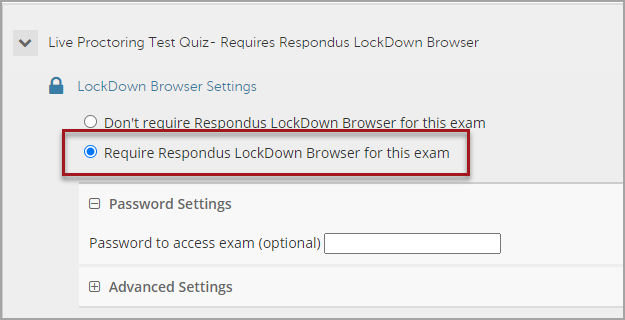
Step 4. The Settings selection window will appear. Select Require Respondus Lockdown Browser for this exam.
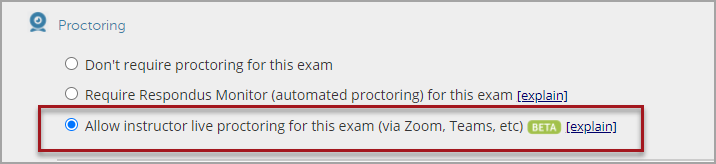
Step 5. Then, under the “Proctoring” section, select Allow instructor live proctoring for this exam (via Zoom, Teams, etc). This will further expand the section.
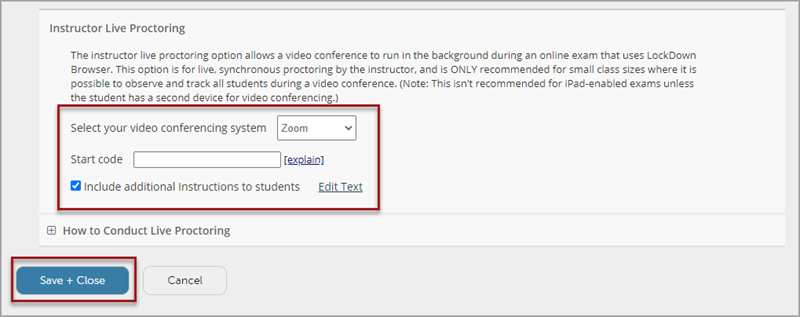
Step 6. In the expanded box:
- Select your video conferencing system: Zoom.
- Enter a Start Code. This is what you will provide to students to allow them to start the quiz.
- Add and edit the additional instruction text if desired.
After deciding on these settings, click the blue Save + Close button to save the settings.
Administering a Live Proctoring Session
Step 1. Start your Zoom session as normal. Instruct students to join the Zoom meeting BEFORE opening the quiz in Lockdown Browser. For specific instruction on using Zoom in D2L Brightspace, please see our Getting Started with Zoom in D2L Brightspace page.
Step 2. Once all students have joined the Zoom meeting, you can provide any needed instructions. Then, have students start the quiz/exam as normal. They will be prompted to open Lockdown Browser.
Step 3. In Lockdown Browser, students will be prompted to enter the Start Code you chose when setting up the Live Proctoring session. Give this code out only after all students have joined the Zoom session and you have provided the needed instructions.
Step 4. Once students enter the Start code, they will begin the quiz. You can then monitor all students via Zoom. Gallery View is recommended for this purpose.
Step 5. Once students complete the quiz/exam, they will close out of Lockdown Browser and remain in the Zoom session. Once all students are done, you can close out of Zoom or continue with the rest of your class session.