Overview
If you chose not to set your quiz to be Automatically Graded upon completion you will need to mark the quiz attempts so that the results can be exported to the grade book (if applicable) and to make the quiz results available to the student.
Instructions
An easy way to determine if a quiz attempt has not been graded is to look at the Published column on the Manage Quizzes Screen. If you see a 0 or if the two numbers do not match, you will know that quiz attempts are not marked as graded.

Manually grading quizzes/exams can be done either at the User/Attempt level or the Question level.
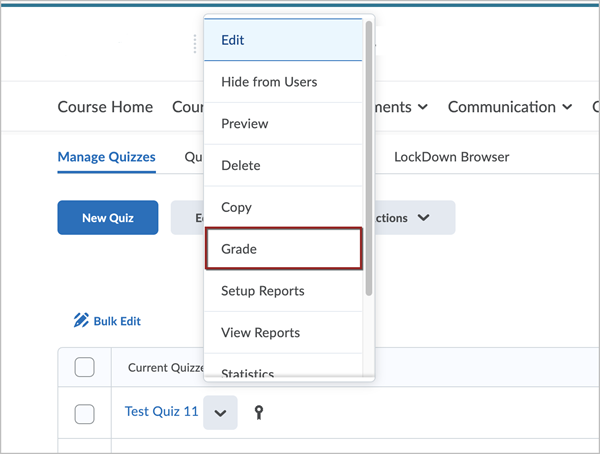
Select the Assessment tab then select Quizzes from the dropdown carat beside the quiz/exam that needs to be manually graded, select Grade.
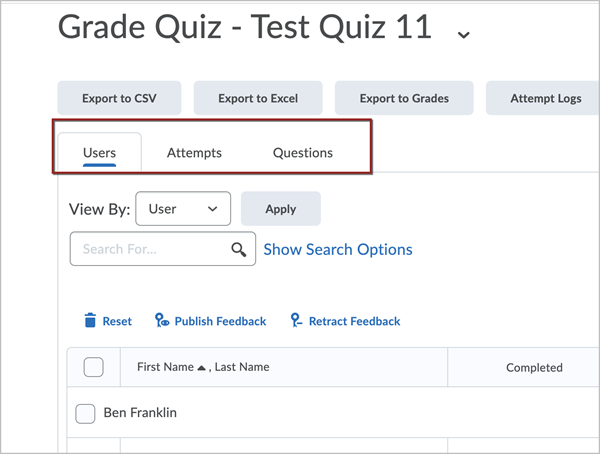
The Grade Quiz window opens. There are three choices under Grade Quiz: Users, Attempts, and Questions.
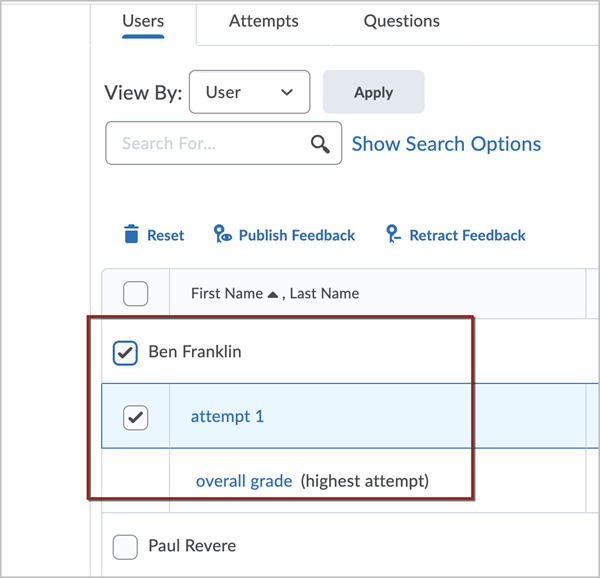
Under the Users tab select the student attempt that needs to be updated.
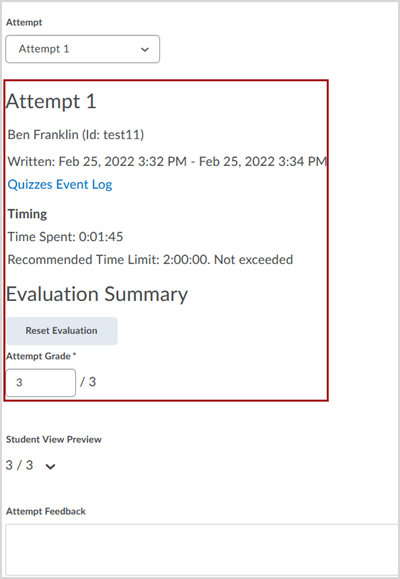
The Evaluation Summary window opens with information pertaining to this User’s attempt and results.
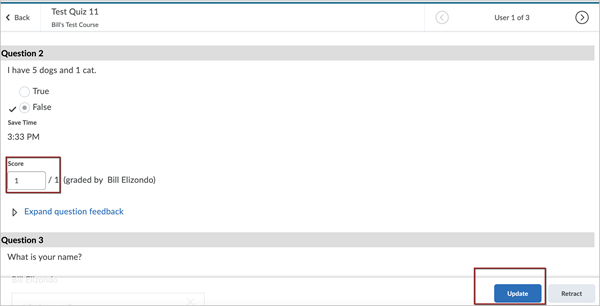
Under this summary are the questions. Under each question is the score of the question. In the Score box, manually select inside the box and enter a new score. When finished updating the question or questions score, select the blue Update button.
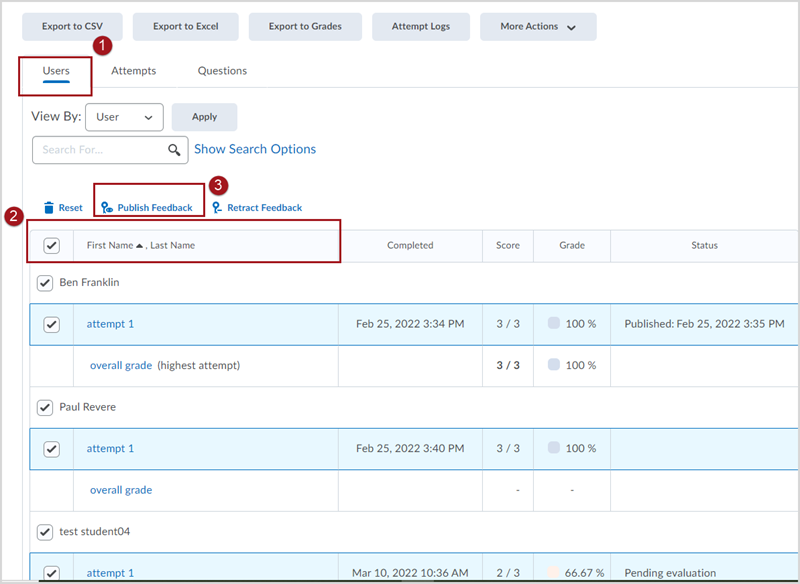
When finished updating all Users scores select the checkbox to the left of each Username updated then Publish Feedback.
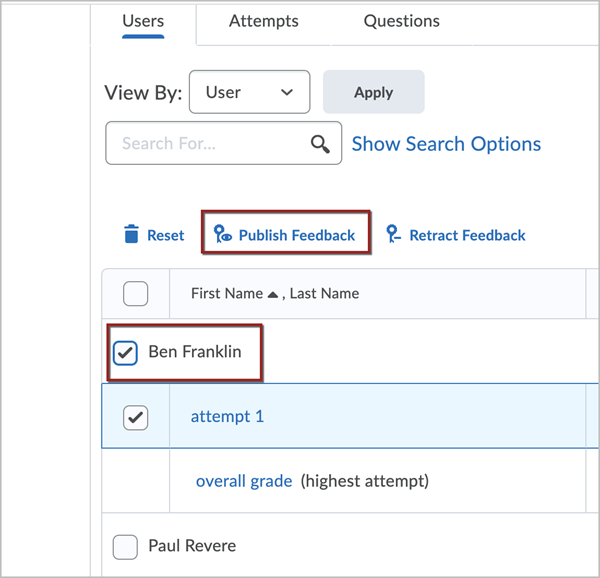
Republishing feedback is necessary to update the scores in the gradebook.
Under the Attempts tab select the attempt to the left of the student you would like to update the score.
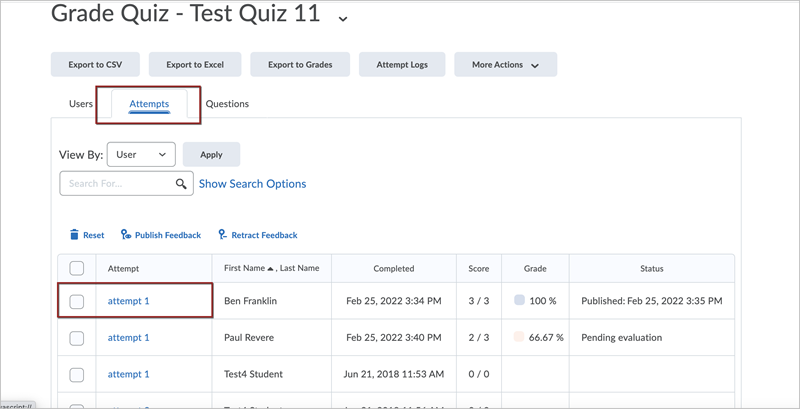
The Evaluation Summary window opens with information pertaining to the attempt selected and results.
Follow the steps for updating the score under User tab above as the steps are the same.
To manually grade a question, select the Question tab. Under the Questions tab select the question that needs to be updated. Click on the question you want to grade:
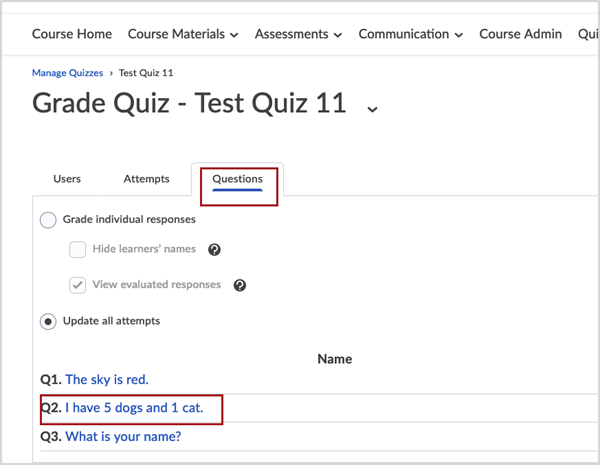
Type the points awarded in the score field.
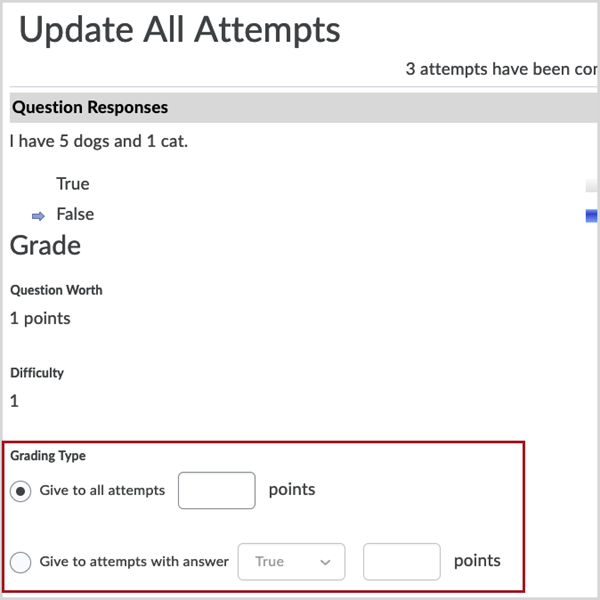
Click Save to update all attempts from all students.
- Select the Users tab again.
- Select the checkbox next to the First Name, Last Name column heading (this selects all student names).
- Publish Feedback to publish the updated scores to the Grade Book.