
Overview
When you use question types that can be graded by the system (e.g., multiple choice, true/false), you may want the quiz results to be automatically scored and published to the Grades tool upon submission. The instructions on this page show you how to do this, as well as the options you can adjust so that D2L Brightspace behaves as you intend.
Instructions
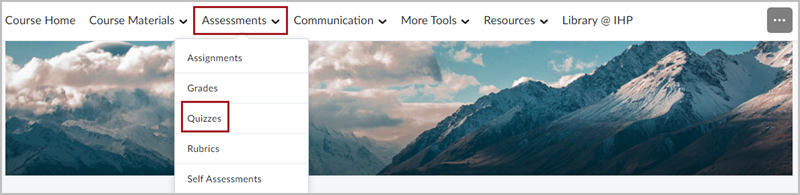
From the Assessments menu, select Quizzes.
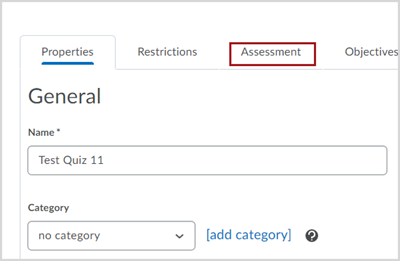
On the following screen, click on the name of the quiz you would like to set to grade automatically.

Click on the Assessment tab.
Auto Grade & Export to Gradebook
- When Automatically Publish Evaluation is turned on quizzes will be marked as graded as soon as an attempt is submitted. This will then display the default Submission View for the quiz (score only by default). The score displayed is only what the system can auto-grade. Any long response or short answer questions must be manually graded.
- When Synchronize to Grade Book is enabled, the system will send scores directly to the grade book once they have been marked as graded. This requires that a grade item is associated with the quiz and Automatic Grade is selected (step below).
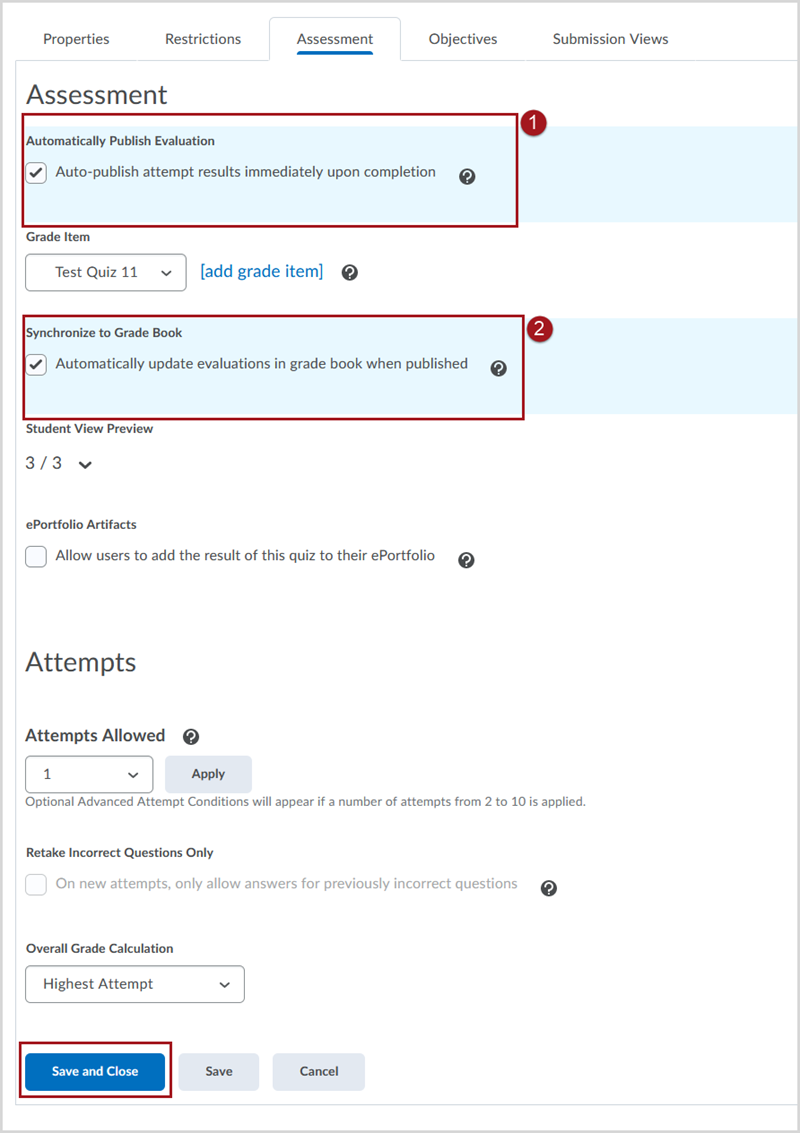
Click Save and Close.