Overview
Before students can upload an assignment, the instructor must create an Assignment Submission folder to hold it.
Instructions
From your course homepage, click on Assignments under the Assessments menu.
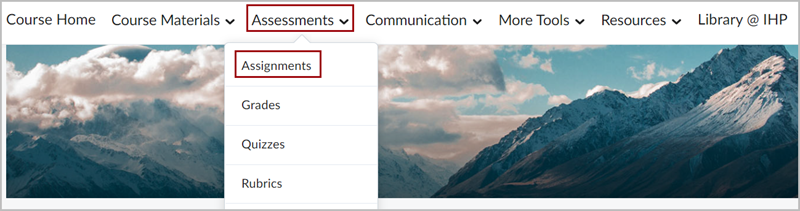
Select New Assignment. The new folder properties screen will open.
Fill in the following information in the assignment creation window:
1. In the Name field, enter a title for your submission folder.
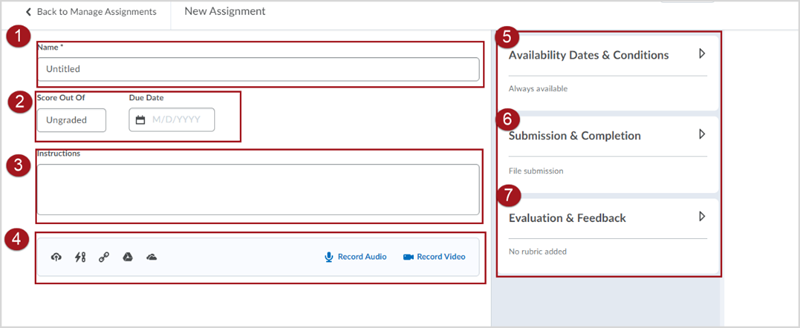
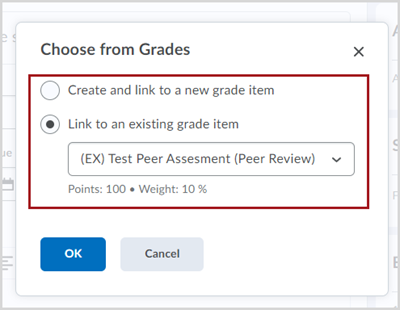
2. Select the Score Out Of box to select from Ungraded to Choose from Grades. A popup will appear.
3. Type in any instructions that you have for the folder in the Instructions text box.
4. Click the Add Attachment button to attach a document or file. You may also choose to Record Audio up to 1 minute long or Record Video up to 3 minutes long.
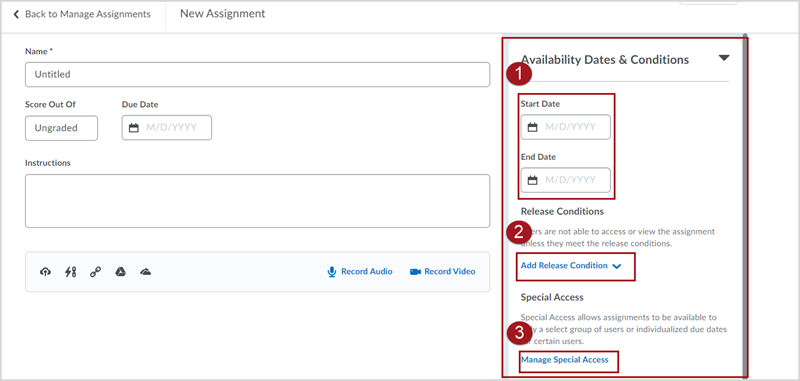
5. Select Availability Dates and Conditions. The pane will open allowing selection of:
- Start Date and End Date.
- Add Release Conditions.
- Manage Special Access (selecting this option will open in a new tab)
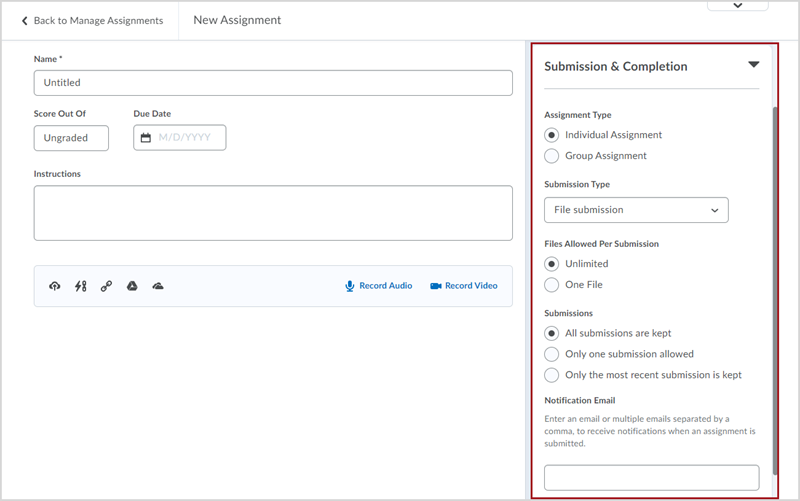
6. Select Submission & Completion. The pane will open allowing selection of Assignment Type. Choose whether this is an Individual or Group Assignment. Note: This setting cannot be changed after students submit to the assignment. Select the Submission type for the Assignment. There are 4 submission types:
- File submission – Students will upload a file to the assignment folder.
- Text submission – Students complete their submission within a text box.
- On paper submission – Students submit a paper copy of the assignment. They do not need to submit anything to the assignment folder on D2L Brightspace.
- Observed in person – Students complete a presentation or demonstrate tasks in person. They do not need to submit anything to the assignment folder on D2L Brightspace.
Define how many files can be included per submission and how many submissions students are allowed.
7. Select Evaluation & Feedback. The pane will open allowing selection of:
- Rubrics, Learning Objectives, use of Annotation Tools.
- Turnitin Integration.
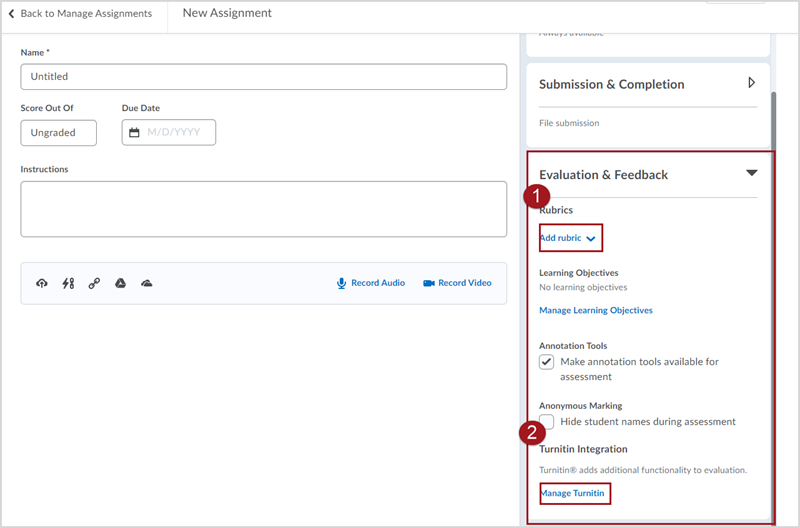
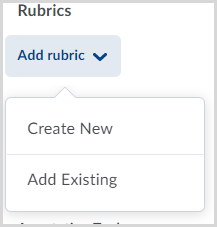
Selecting 1. Rubrics dropdown carat opens a popup to Create New or Add Existing rubric. Note: Selecting Create New will open the create a new Rubrics screen.
Decide whether you want to have Anonymous Marking, which will anonymize student names while you grade to prevent bias.
Annotations Tool is selected by default.
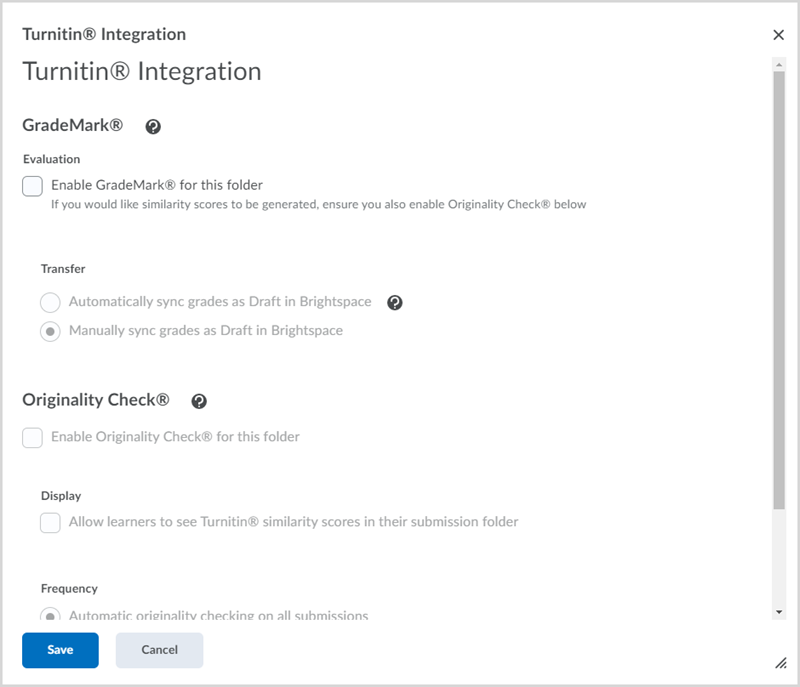
Selecting 2. Turnitin Integration opens a new popup window to allow Turnitin settings selection.