Overview
Within D2L Brightspace’s Classlist tool, you can add course-wide quiz accommodations for individual students. This feature allows you to enable a student’s timing accommodation setting once (e.g., 1.5x time) and have it apply automatically to all quizzes in the course.
What you need to know…
- This setting automatically applies to all quizzes in a course. If you only need to provide accommodations for a small number of quizzes and/or for a small number of students, you may be better served by adding Special Access on a quiz-by-quiz basis.
- You can also override a course-wide accommodation on a quiz-by-quiz basis as needed. If you add Special Access to an individual quiz, that will override the course-wide settings.
- This feature can only be used to adjust quiz time limits. It cannot be used to adjust other accommodations such as differing quiz start and end times. Other accommodations should be adjusted on a quiz-by-quiz basis.
Adding an Accommodation
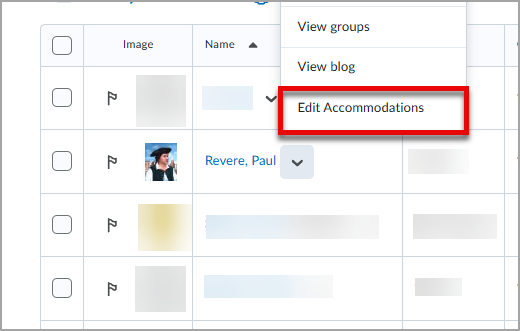
Step 1. In the Classlist Tool, select the dropdown associated with the student for whom you are adding accommodations. Then, select Edit Accommodations from the menu. This will open a pop-up menu.
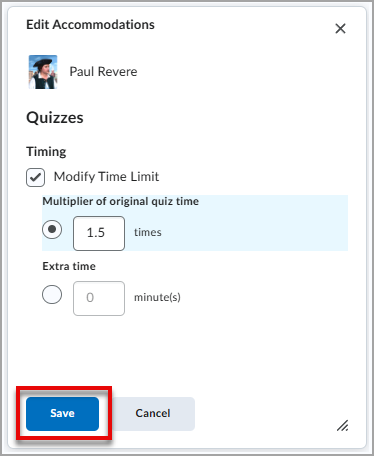
Step 2. In the “Edit Accommodations” window, add the timing accommodations for Quizzes. This will apply to all Quizzes in the current course. Then, click the blue Save button at the bottom of the window.
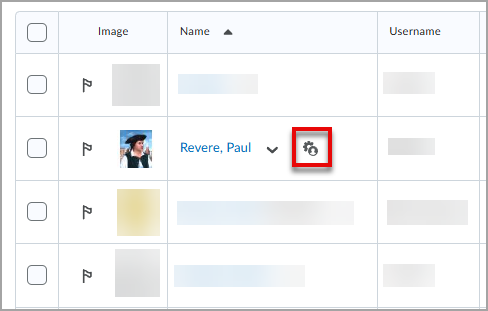
Step 3. Note that the student now has a gear profile icon next to their name in the Classlist. This is only visible to course Faculty and Staff and indicates that the student has accommodations set.
Viewing the Accommodation in the Quizzes Tool
You can confirm or check that the accommodations are applied in the Quizzes tool by following these steps.
Step 1. Go to a Quiz and select Edit.
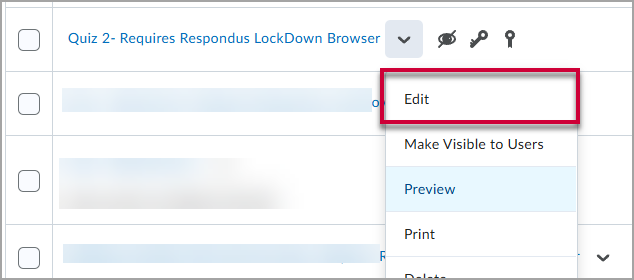
Step 2. Then, under “Availability Dates & Conditions”, select Manage Special Access.
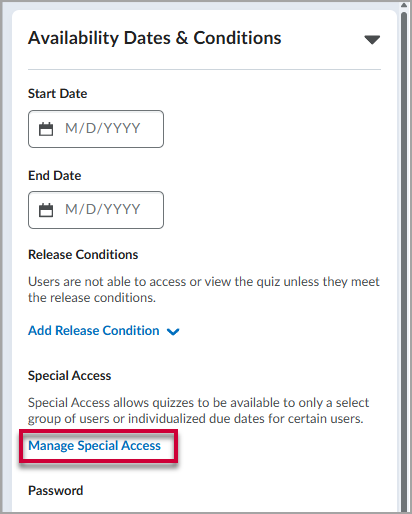
Step 3. Click the Add Users to Special Access button.
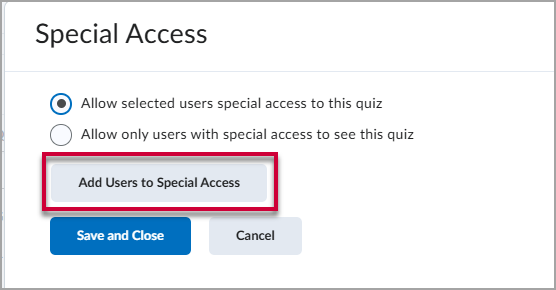
Step 4. When looking at the list of learners, note that D2L shows the Time Limit that was automatically updated for this student. No further action is needed on your part. You would only need to change settings here if you wanted to update the student to have a different time extension (e.g., 2 times rather than the 1.5 times that was previously set) or set another accommodation, such as a different start or end time for the quiz.
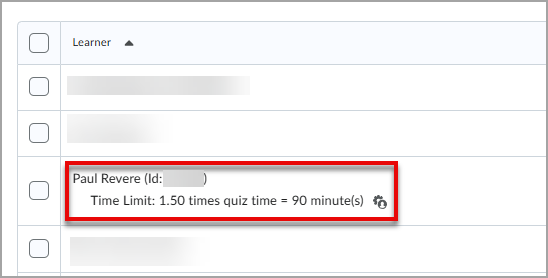
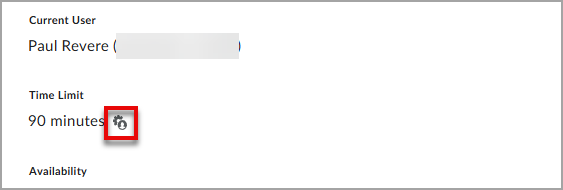
Note that students are also able to see if accommodations have been set for them. This information will display right before they start a Quiz.