Overview
Students who receive accommodations or have an excused absence may need additional time to complete a quiz and/or may need to complete the quiz on a date different from the rest of the class. Special access allows you to change the quiz restrictions for specific students to accomplish this.
Instructions
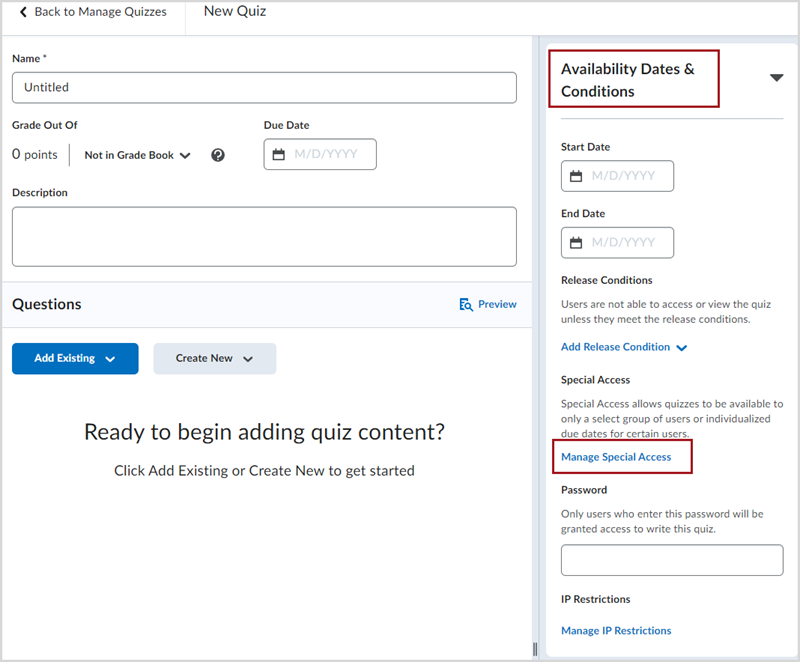
From the Edit Quiz screen, click on the Availability Dates and Conditions then Manage Special Access.
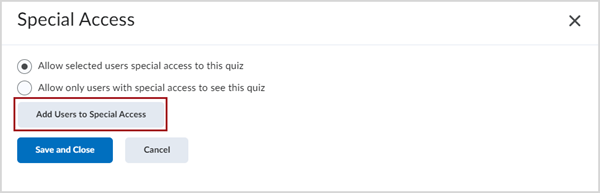
For a Quiz: Allow selected users special access to this quiz OR Allow only users with special access to see this quiz. Click the Add Users to Special Access button.
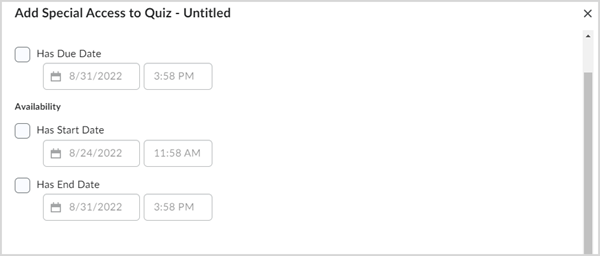
Select a time and date under Properties for the special access users.
- Giving a Due Date will end the quiz availability
- Giving both a start and end date will open the Quiz for that period of time.
- Giving only a start date will open the Quiz at that time and remain open indefinitely.
- Giving only an end date will open the Quiz from the current time until the specified end date.
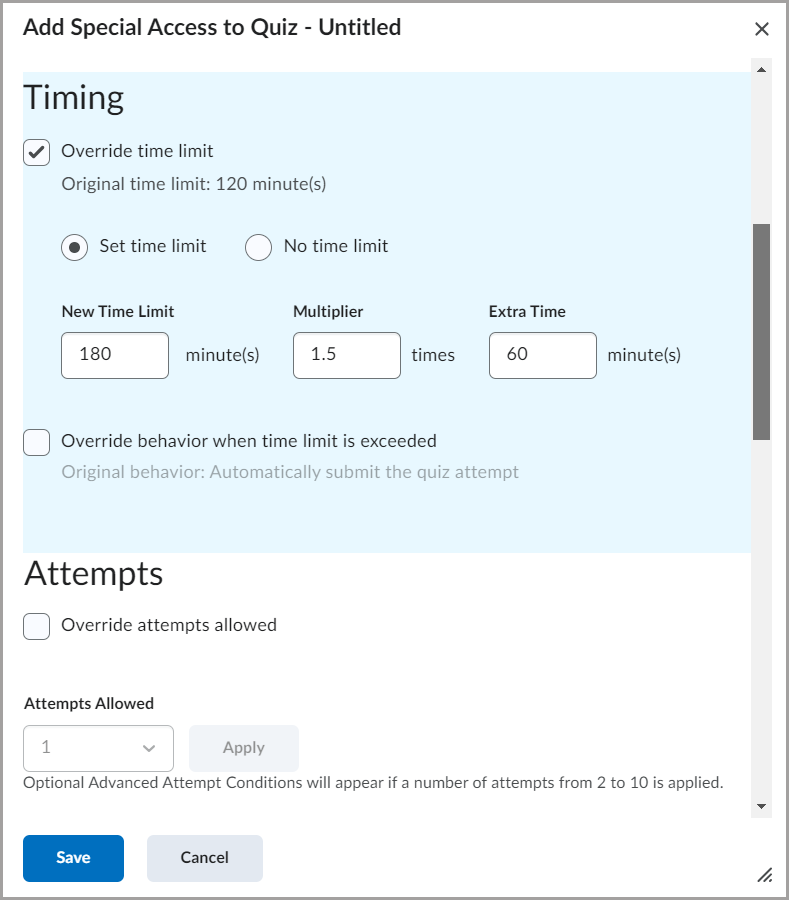
- *Quizzes only* – Under Timing, you may change the time limit and late submission settings for the Quiz.
- If no changes need to be made, leave the Override time limit option unchecked. The special access quiz will use the same time limit settings as the main quiz.
- The No time limit will provide a suggested time to the student, but allow them to take an unlimited amount of time to complete the quiz.
- The Set time limit option will allow you define the time limit for allowed for a student as well as set the behavior should the time limit be reached. In the example below we have this student time and half.
- If you need to allow additional attempts on the quiz for this user, under Attempts select Override attempts allowed and choose the number of attempts you would like to allow.
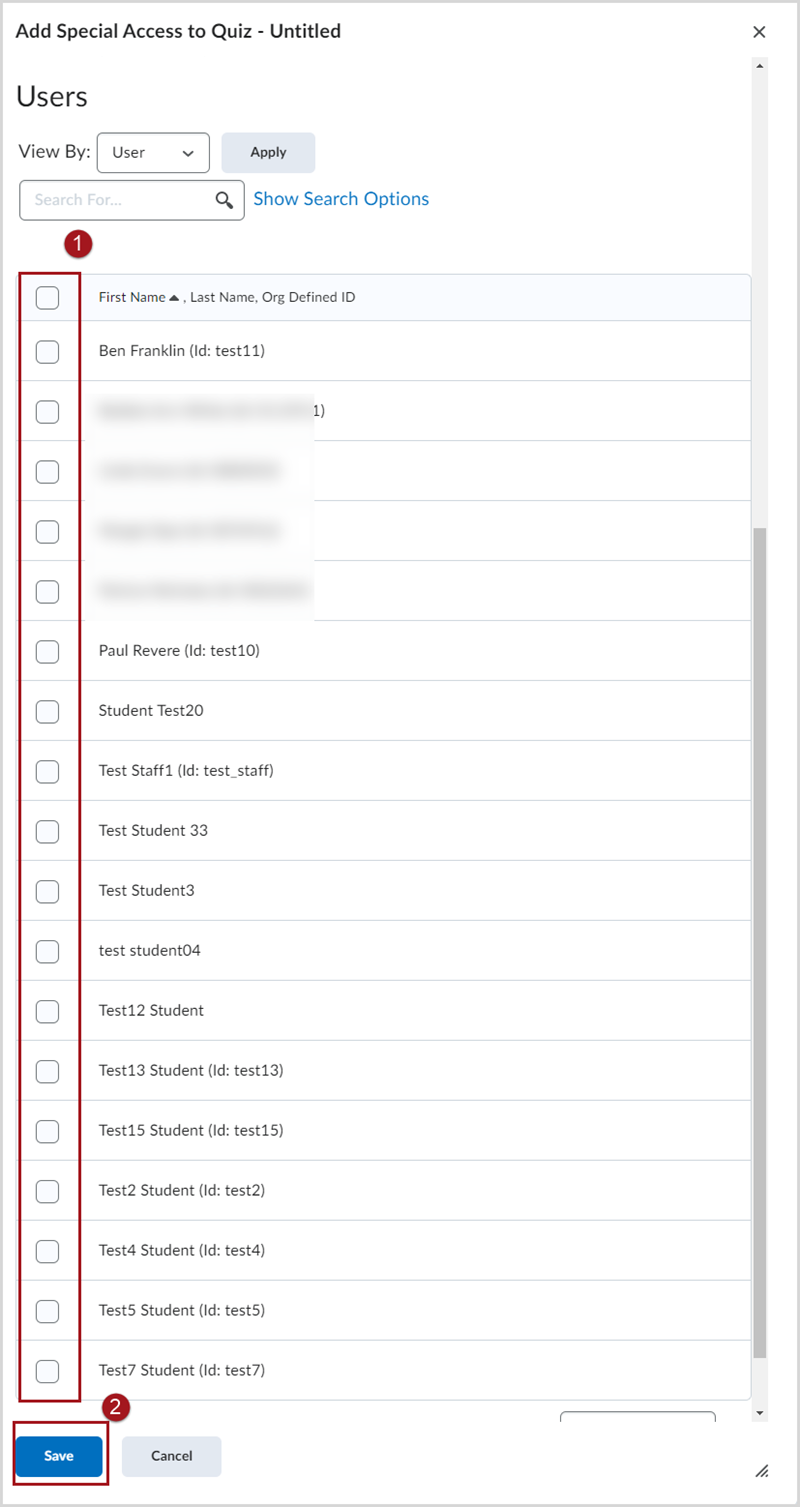
- Select the boxes beside the appropriate user’s names from the list.
- Click Add Special Access (Quiz) or Save (Assignments).
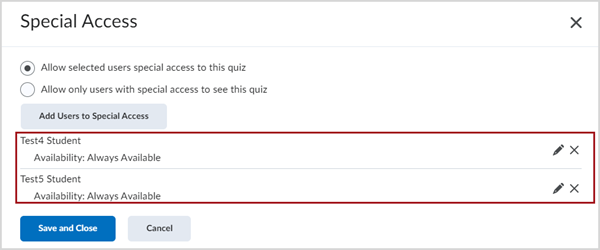
When you are finished, you will see the student listed in the Advanced Availability section.