Overview
Live Transcription enables real-time speech to text transcription in Zoom sessions. This feature has been enabled for all users. Please note that Live Transcriptions is not available in Breakout Rooms.
Instructions

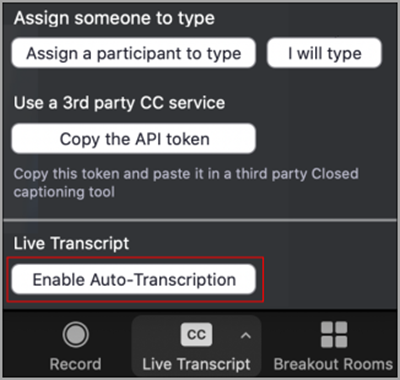
To turn on transcription, click “Live Transcript” then “Enable Auto-Transcription”.
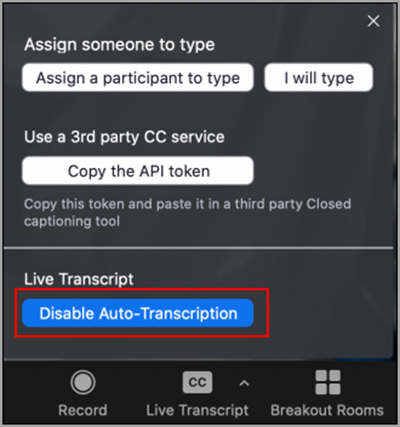
To turn-off live transcription click “Live Transcript” then “Disable Auto-Transcription”.
For participants
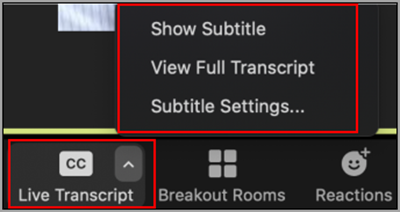
Once Live Transcriptions is enabled, participants will have the option to choose how they would like to display them:
- Show Subtitles – Displays subtitles on the bottom of the screen.
- View Full Transcript – Displays subtitles in real time with both the speaker’s name and a time-stamp within the transcript window located on the right hand side of the screen.
- Subtitle Settings – Allows the user to adjust the font size of both the subtitles and the chat window.