Overview
The User Progress tool allows the instructor to keep track of student progress in a course by measuring their completion of 9 different progress indicators. Instructors can use User Progress to track their students’ overall progress and prepare progress reports, while students can use User Progress to keep track of all of their course-specific assignments and feedback. Progress reports are available for the following progress indicators:
- Grades
- Objectives
- Content
- Discussions
- Assignments
- Folders
- Quizzes
- Checklist
- Surveys
- Login History
Instructions
Individual User Progress
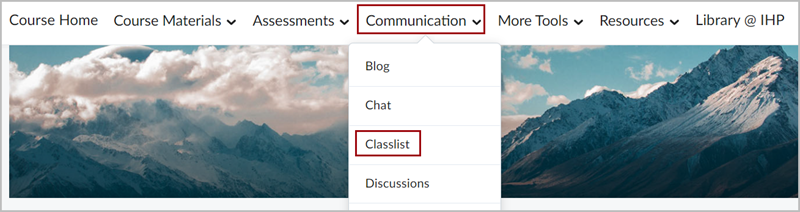
To access individual user progress first navigate to the Classlist under the Communications menu.
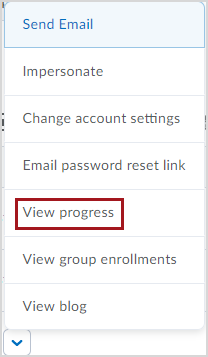
Click the drop down next to a student name and select View progress.
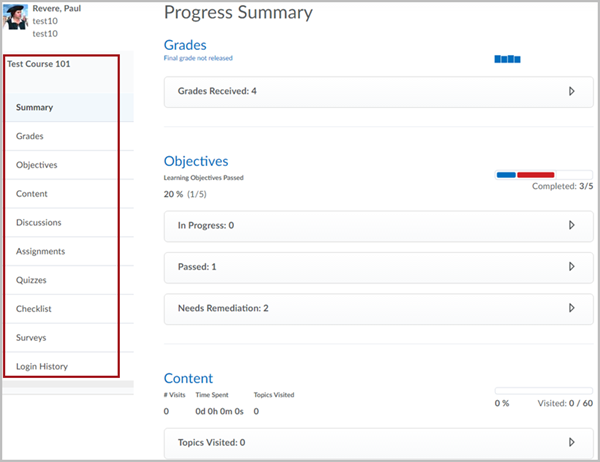
From this screen you will see a Progress Summary of the student progress. Select a tool from the menu on the left for more details about each tool.
Classlist Progress Summary
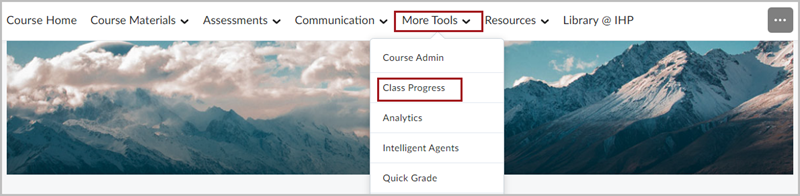
To view a summary of progress by the entire classlist first, click Class Progress from the More Tools drop-down menu in the navigation bar.
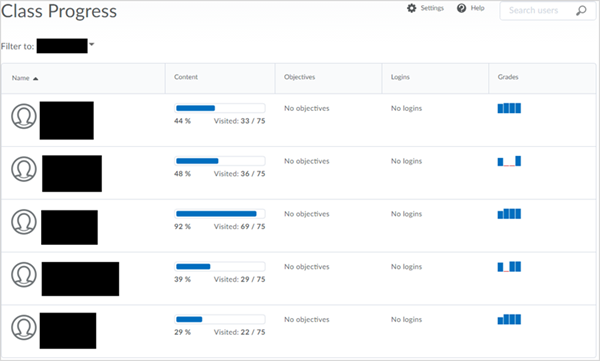
From this screen you will see a summary of the entire classlist as it relates to 4 different progress indicators.
By default these are:
- Content
- Objectives
- Logins
- Grades
*Note: You can click on the student’s name to view their full progress summary.
Additional Information
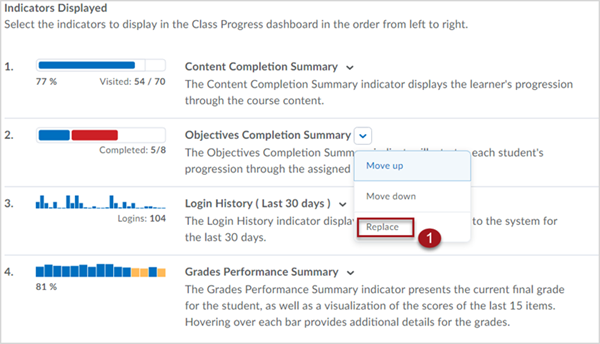
If you would like to replace or reorder the default categories that display, you may do so by clicking the Settings link at the top right of the screen.

To replace an indicator:
- Click on the drop-down next to the current category you’d like to replace.
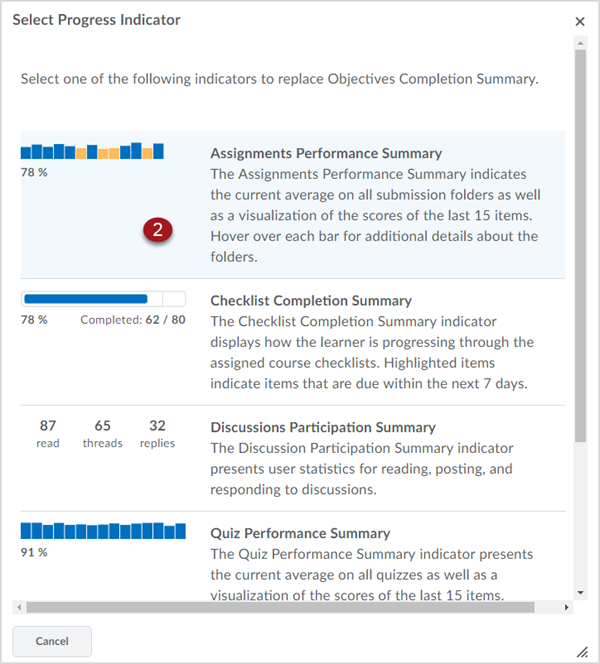
- Select the new report.
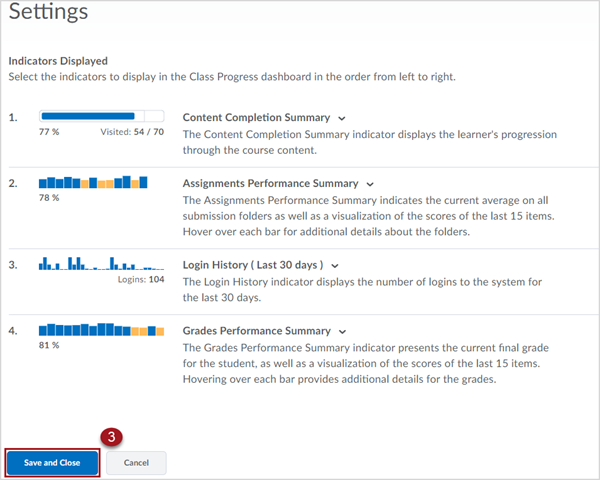
- Save and Close.