Menu Close

Submitting a Quiz for a Student

Overview

If a student does not have the ability to submit a quiz themselves, you as the instructor can go into their quiz attempt and submit the quiz for them.  The following guide will show you how to access their quiz attempt and submit their quiz.


Instructions

From your course homepage, go to the Assessments drop-down menu and select Quizzes.

D2L Brightspace Navbar with the "Assessments" dropdown menu expanded. There is a red box around the "Quizzes" option in the dropdown menu

Click Grade from the Quiz’s drop-down menu.
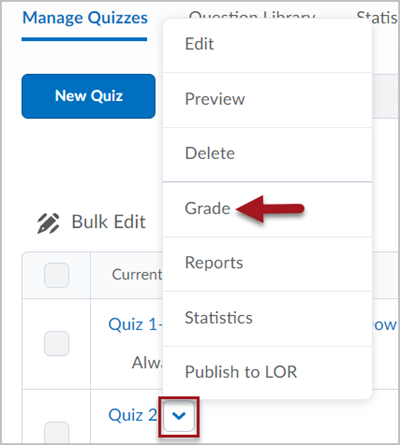
Manage Quizzes screen with the dropdown menu associated with "Quiz 2" expanded out. A red arrow points to the "Grade" option in the dropdown menu.

On the next page, complete the following steps:

  1. Select Users with attempts in progress from the Restrict to menu.
  2. Click the search icon.
  3. Click the icon to the right of the student’s attempt to enter the quiz as this student.
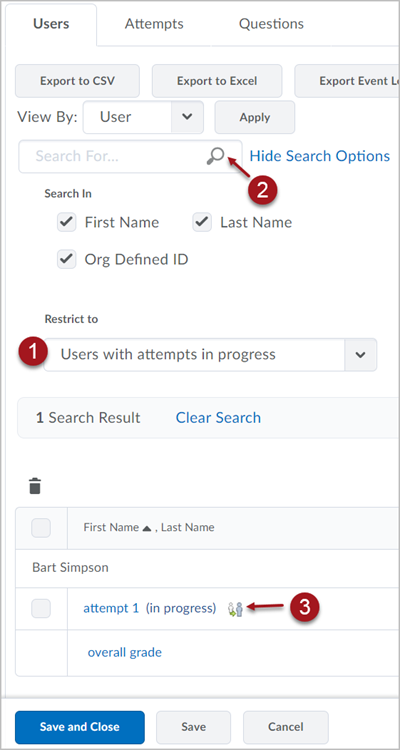
Labeled screenshot of the Grade Quiz interface, showing the list of users 1. restricted to "Users with attempts in progress", 2. an arrow pointing to the magnifying glass icon in the search field, and 3. the Enter Quiz as Student icon for test student Bart Simpson

You will receive a small confirmation window.  Click Yes.
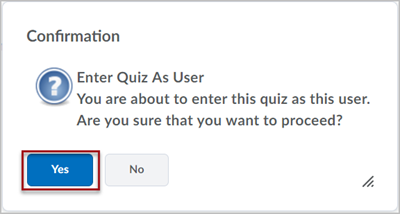
Confirmation pop-up box asking the user to confirm they want to "Enter Quiz As User". There are buttons for "Yes" and "No", with a red box around the "Yes" option

You are now in the quiz as the student.

  1. In the upper-left hand corner each question will have an icon to indicate if the question answer is saved.  If the icon is darkened, the answer has been saved.
  2. When the quiz is ready to be submitted, click Go to Submit Quiz.
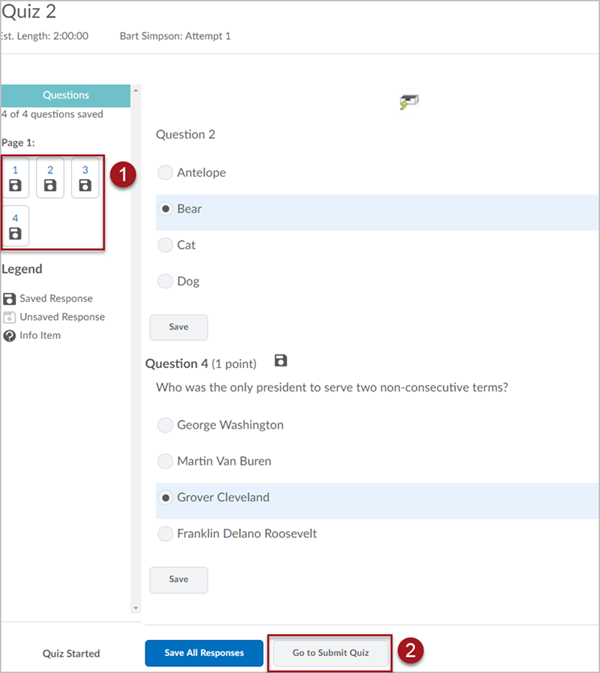
Labeled screenshot of a D2L Brightspace quiz attempt, with 1. quiz questions shown by page in the left toolbar and 2. a button labeled "Go to Submit Quiz"

On the Quiz Submission Confirmation screen, click Submit Quiz.
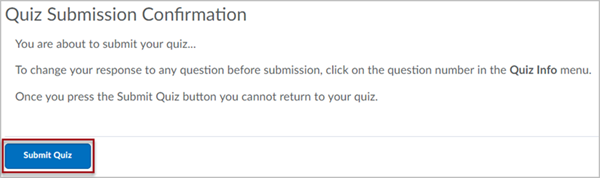
Quiz Submission Confirmation screen with a red box around the "Submit Quiz" button at the bottom of the window.

There will be a final confirmation screen. Click Yes, submit Quiz.
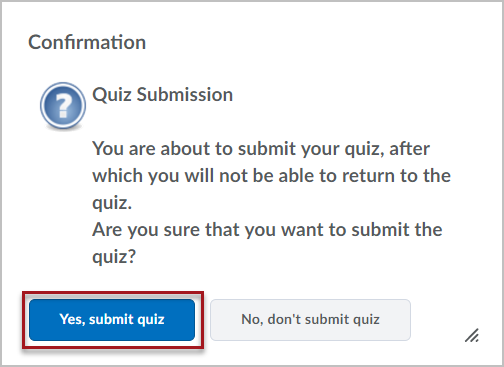
Confirmation screen for quiz submission, asking the user if they are ready to submit the quiz. There are buttons for "Yes, submit quiz" and "No, don't submit quiz", with a red box around the Yes option.