Overview
If you need to contact all or some of the students in your course, you can use the Classlist tool to send an email to one or more users. All recipients will be added to the BCC field by default.
If you are contacting all of your students, you might consider posting a course Announcement in addition to or instead of sending an email.
Instructions
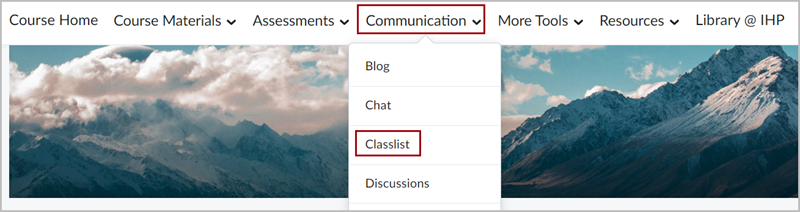
To Compose & Send email, go to the Classlist under the Communication menu.
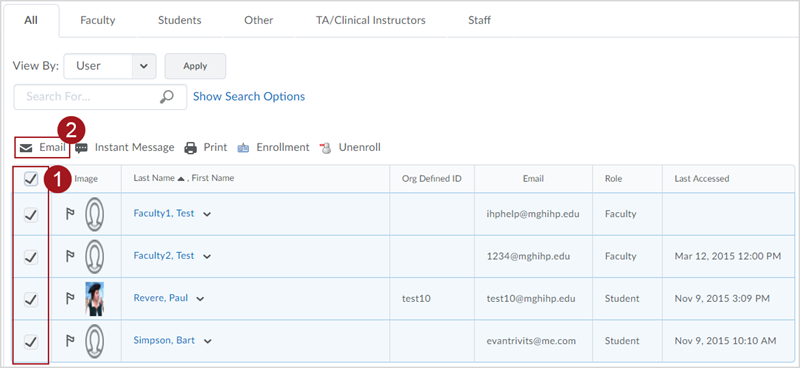
To email the entire class:
- Click the Select All check box on the top menu bar.
- Click Email.
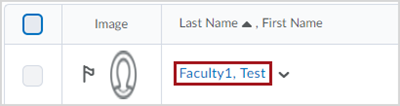
To email and individual student click on the student’s name.
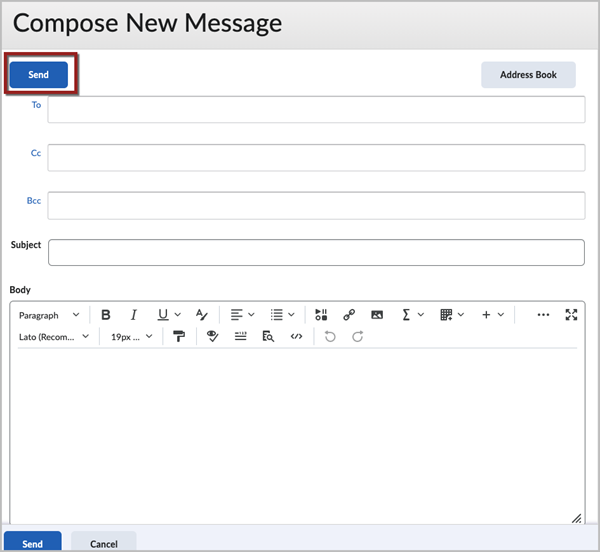
In both cases the Compose Message window will appear. Along with standard email functionality there is also a standard WYSIWYG editor that will allow you to attach course files, embed YouTube Videos as well as record audio.
Viewing Sent Email
To view emails you have previously sent through D2L Brightspace:
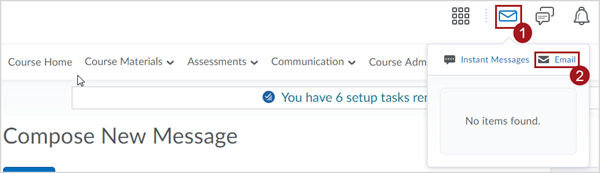
- Click the “Envelope” icon in the Minibar at the very top of the page.
- Click the Email link. This will take you to the “Compose New Message” page.
From the “Compose New Message” page, click the Sent Mail button on the right side of the page.
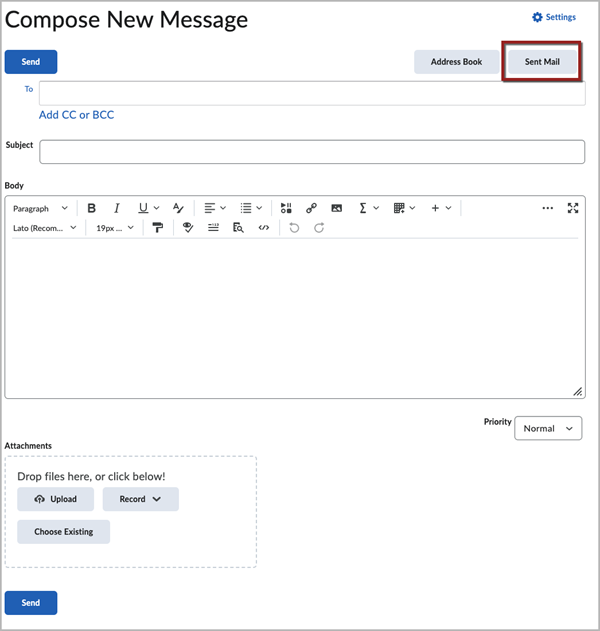
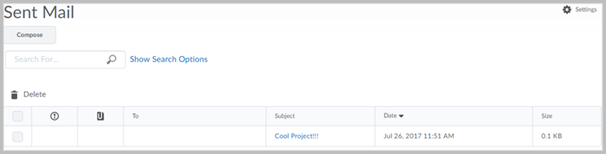
You will then see all emails you have previously sent through D2L Brightspace.