Menu Close

Releasing Final Grades in D2L Brightspace

Overview

Note: Official grades must be entered into IOnline at the end of the semester. Releasing Final Grades in D2L Brightspace only informs students of their final grade in the Grades tool.

By default, D2L Brightspace does not display a final score or running total in the Grades tool. Students see each graded item’s score and its weight towards their final grade, but not the “grand total”. If you’d like students to see their overall score in the course, you can use these instructions to release the final grades.


Instructions

To release Final Grade item in D2L Brightspace, Select the Assessments tab then Grades from the drop-down menu.
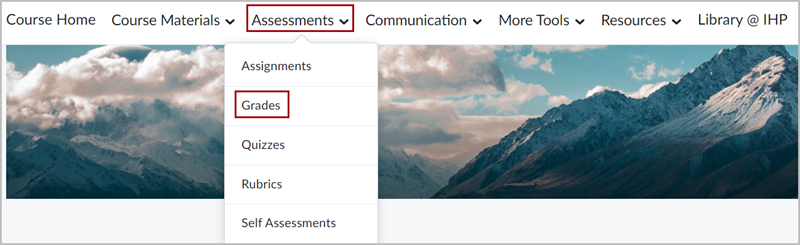
D2L Brightspace Navbar with the "Assessments" dropdown menu expanded out. There is a red box around the "Grades" option in the dropdown menu.

The Manage Grades screen will open.
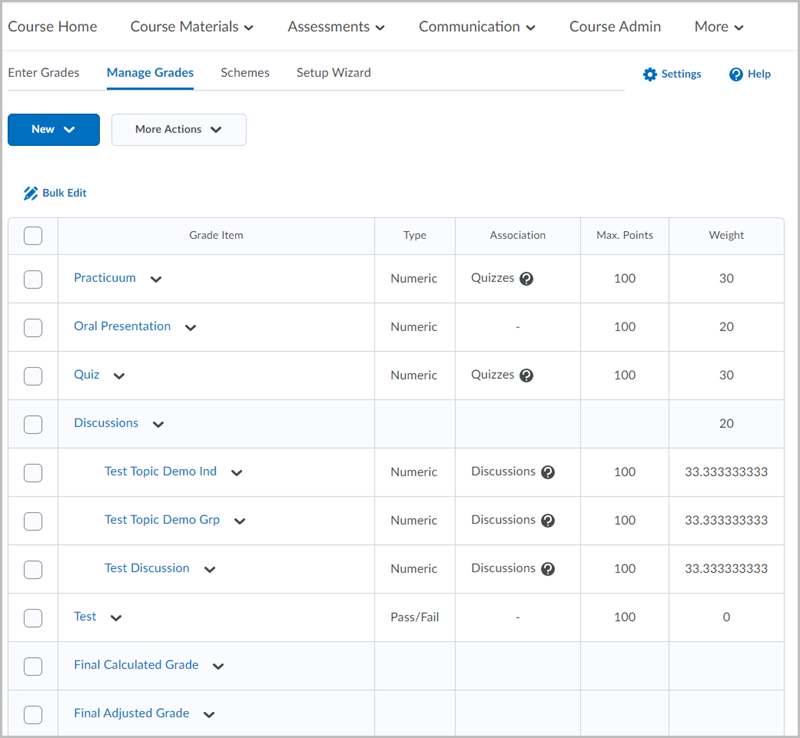
Manage Grades screen in D2L Brightspace showing a variety of grade items in a tabular list, including Quizzes, an Oral Presentation, and three Discussions. At the bottom of the list are rows for "Final Calculated Grade" and "Final Adjusted Grade".

Select the drop down next to Final Calculated Grade, then select Enter Grades.
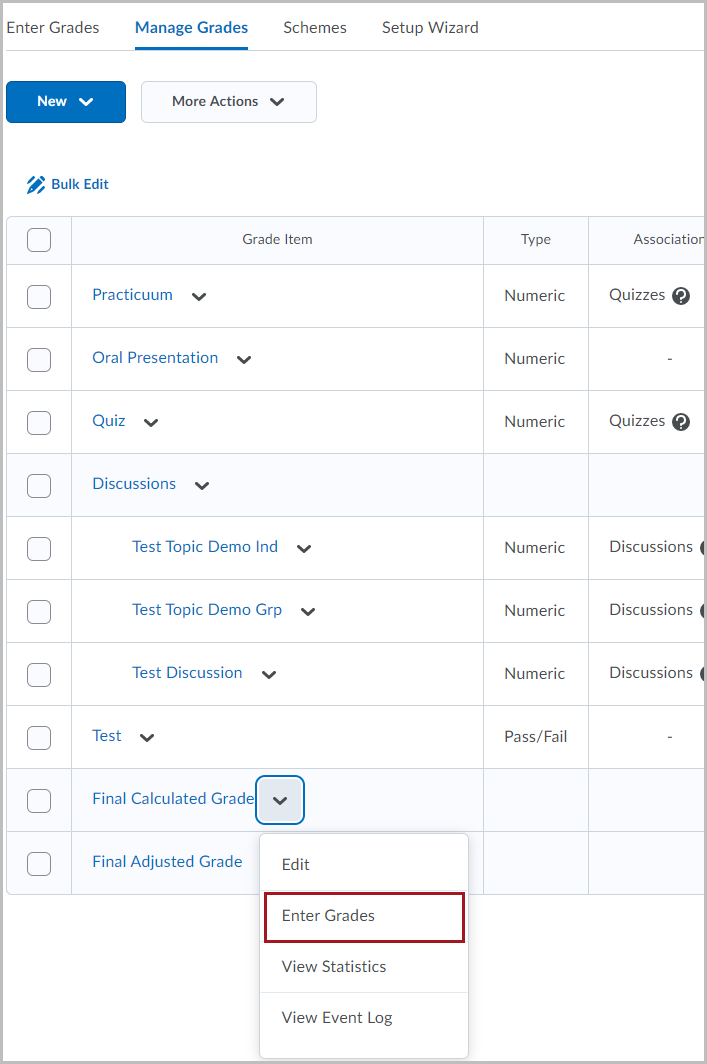
Manage Grades screen in D2L Brightspace showing a variety of grade items in a tabular list. At the bottom of the list are rows for "Final Calculated Grade" and "Final Adjusted Grade". The dropdown menu associated with "Final Calculated Grade" is expanded out and there is a red box around the "Enter Grades" option in the menu.

The Final Grades screen will appear.

Select the first Check box to select all students or select the check box by an individual name then Select Release/Unrelease.
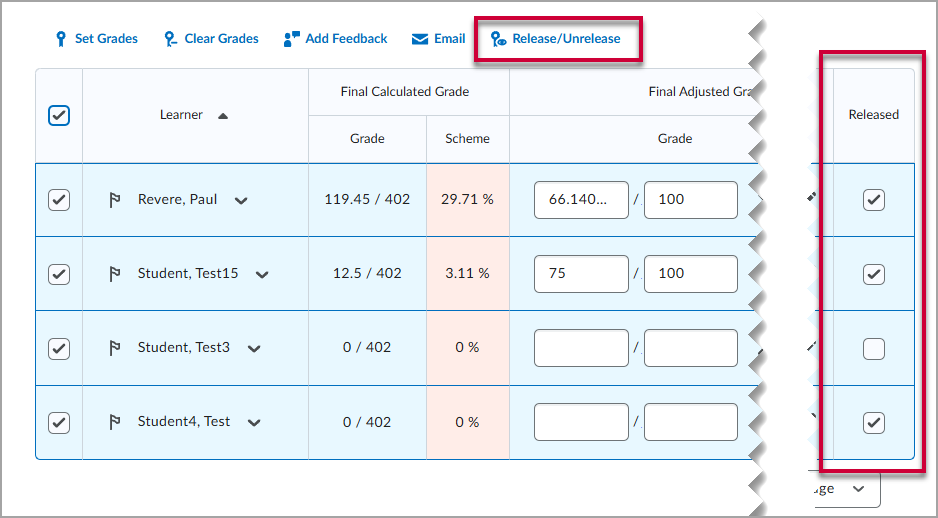
The Enter Grades screen for Final Grade showing columns for "Learner", "Final Calculated Grade" and "Final Adjusted Grade", and "Released".  All four students in the list are selected and there is a red box around the "Release/Unrelease" button above the columns. There is also a red box around the rightmost column labeled "Released"


A pop-up will appear asking to confirm the selection.
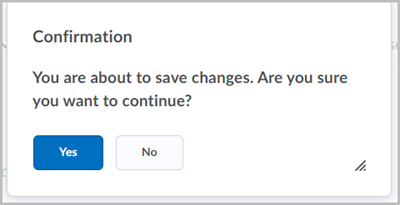
A popup box titled "Confirmation" stating "You are about save changes. Are you sure you want to continue? There are buttons for "Yes" and "No".

Final Grade will be released to the student or students selected.
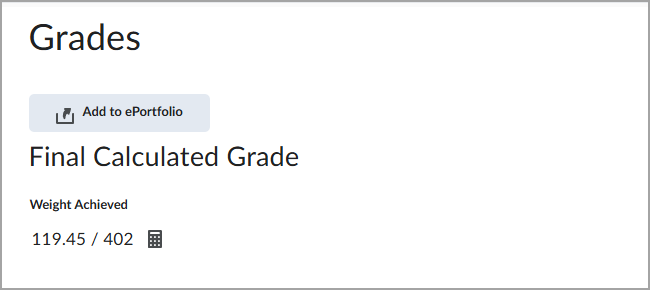
The Grades screen in D2L Brightspace from a student's perspective, showing their "Final Calculated Grade" as 119.45 out of 402.