Overview
Release conditions allow you to create a custom learning path through the materials in your course. When you attach a release condition to an item, users cannot see that item until they meet the associated condition.
For example, you could attach a release condition to the second topic in your course’s content area that would hide that topic until users viewed the topic before it. Or you could create a condition that required users to view a content topic before gaining access to a quiz, or one that required them to post to a discussion topic before they could see a content module.
If you attach multiple conditions to an item, users must meet all conditions before they can access the item. For example, you could require users to visit the first three content topics in a unit before gaining access to an associated quiz.
Instructions
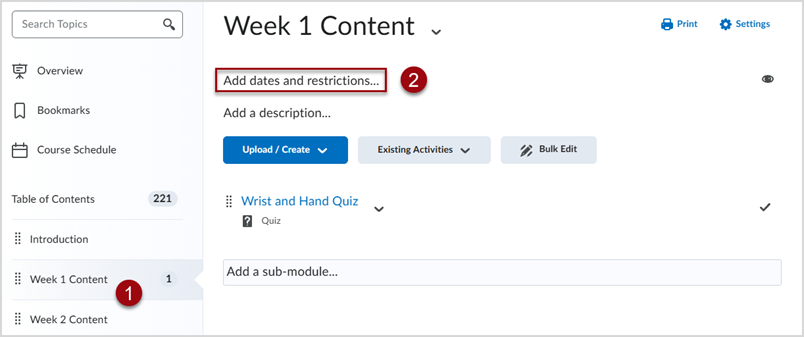
Step 1. Locate the release conditions or restrictions area, found in the item’s editing mode. For most tools (e.g. Assignments, Quizzes, etc.) this will be located under the Restrictions tab. For content items, this is located using the Edit Properties In-Place option.
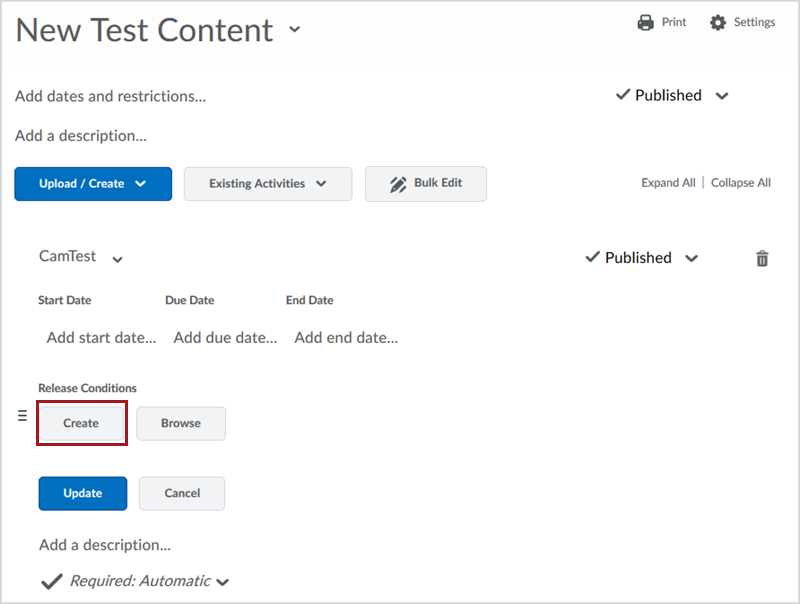
Step 2. Click Create or Create and Attach.
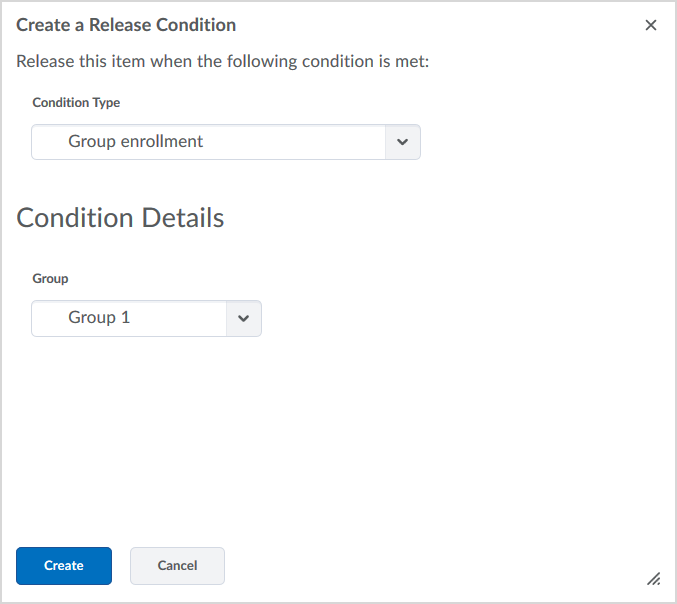
Step 3. Select the Condition Type and complete the Condition Details. Then click Create.
This example uses Group Enrollment as a condition, but there are a number of available options for release conditions. For more information, please contact the IT Help Desk.
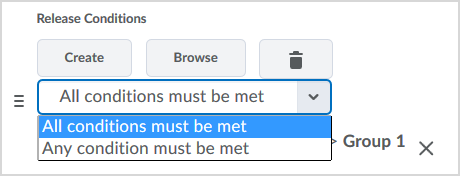
Step 4. Choose whether access to the item is dependent on meeting All or Any of your conditions and then click Save.