
Overview
ReadSpeaker is a text to speech tool for HTML pages within the Content, Assignments, and Quizzes areas of D2L Brightspace. As the instructor, you do not have to activate anything–the tool is simply there for use.
About ReadSpeaker
ReadSpeaker is located at the top of the text box within the content area of any HTML page created within the Content section of D2L Brightspace.
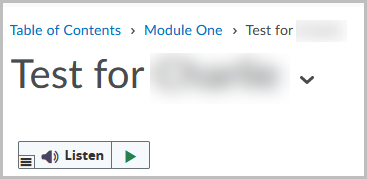
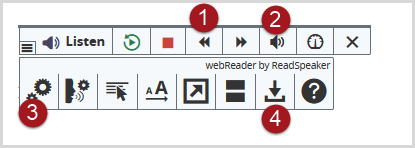
Once you click on the play button the tool will expand to show all of its functionality:
- Play Controls
- Sound Control
- ReadSpeaker Settings
- Download audio (audio from HTML pages can be downloaded as MP3 files)
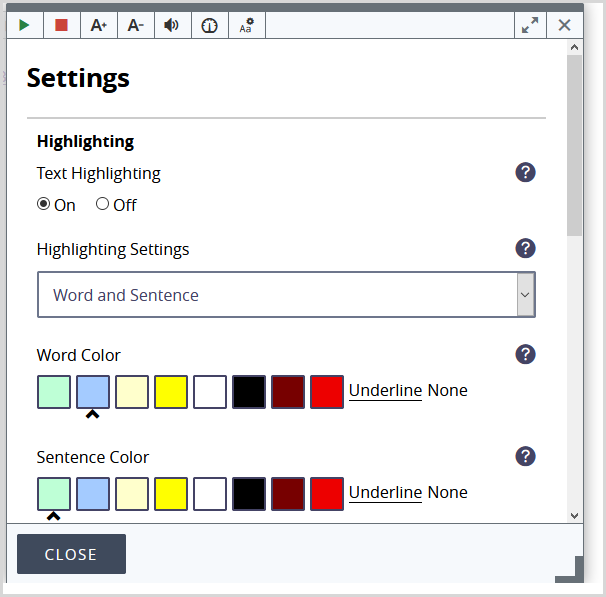
Settings Option
Change some of the basic settings to suit your needs.
Highlighting
- Text highlighting: Turn on (default); Turn off
- Highlighting options: Word and sentence (default); Sentence only; Word only; No highlighting
- Word color (highlight will follow voice)
- Sentence color (sentence will be highlighted, indicating where the voice will read next)
Reading
- Speed: Slow; Medium (default); Fast
General
- Automatic scrolling: On; Off (default)
- Pop-up button: On (default); Off
Dictionary and Translate
Dictionary and Translate are two additional features in Readspeaker.
Select a section of text from an HTML page in Content, a popup menu will appear.
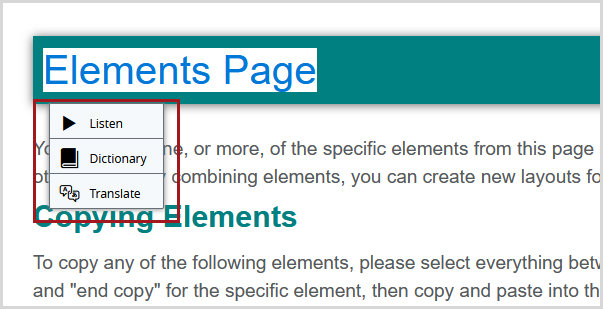
Selecting either Dictionary or Translate will open another pane with the definition or the translation. Note: These features do not work in Quizzes along with the Download feature.