Overview
It is generally a good idea to preview a quiz before making it active for all students to see and take. Previewing a quiz allows you to see what a quiz looks like for students when they are taking it and how the quiz is graded. You can use this information to make adjustments to the quiz so that it is presented exactly how you want it to be.
Instructions
Taking a Preview Quiz
Follow these steps to preview how a quiz you have created will look to students taking it.
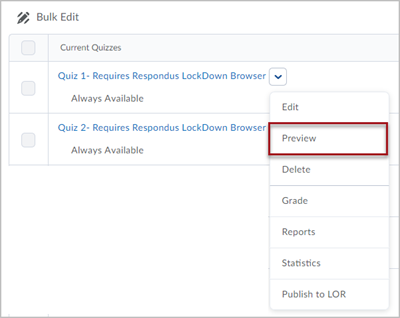
Go to the “Quizzes” page and click on the drop-down menu associated with the quiz you want to preview. Select Preview from this drop-down menu.
On the next page, click Start Quiz at the bottom of the page. Then click OK when the confirmation window pops up.
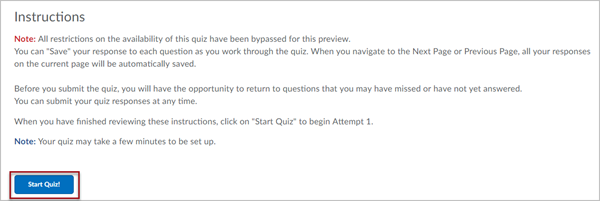
You now see the quiz as students will see it when it is active. When you are finished viewing the quiz/answering the questions you would like to, click the Submit Quiz button at the bottom of the page.
Note: If you would like to see how the quiz is graded, you will want to answer at least some of the questions.
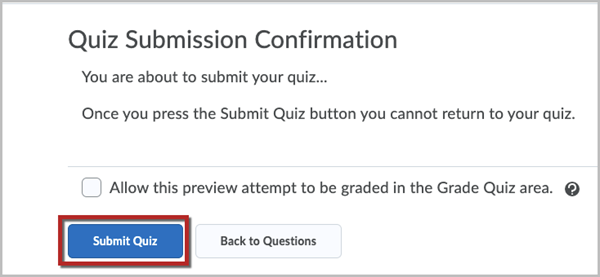
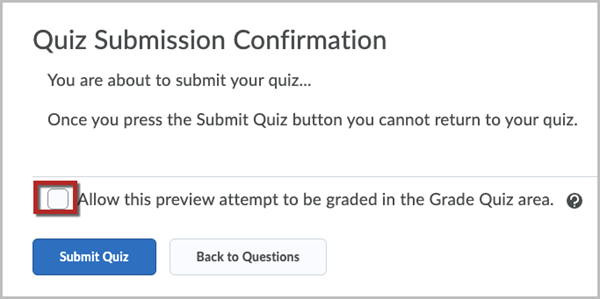
On the “Quiz Submission Confirmation” page, you can submit the quiz by clicking the Submit Quiz button. If you would like to be able to view your quiz attempt as an item in the Grade Quiz area, check the box next to “Allow this preview attempt to be graded in the Grade Quiz area”. Then click Submit Quiz and click Yes, submit quiz in the associated pop-up box. You will then see the Submission View that students will see after completing the quiz.
Grading a Preview Quiz
If you checked the “Allow this preview attempt to be graded in the Grade Quiz area” box when taking the preview quiz, you can follow these steps to preview how the quiz will look when being graded.
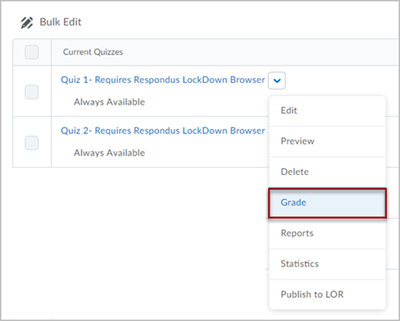
Go to the “Quizzes” page and click on the dropdown menu associated with the quiz. Select Grade from the dropdown menu.
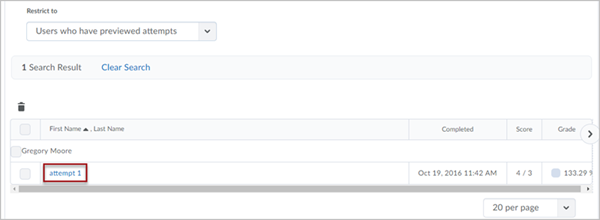
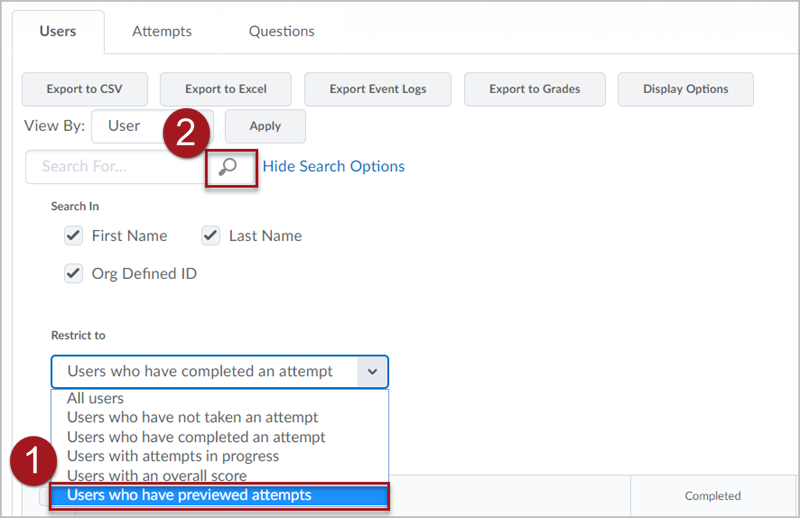
Look for the dropdown menu labeled “Restrict to”.
- Click on the dropdown menu and select Users who have previewed attempts.
- Then click the magnified glass icon associated with the “Search for” field.
Find and click on your attempt to view it.