Overview
If you would like to enter grades for an assignment for all students in a single screen, this can be done using the Grades tool. This is most often used when an assignment has been graded outside of the D2L Brightspace environment, such as class participation, but has an associated grade item in a D2L Brightspace grade book.
Instructions
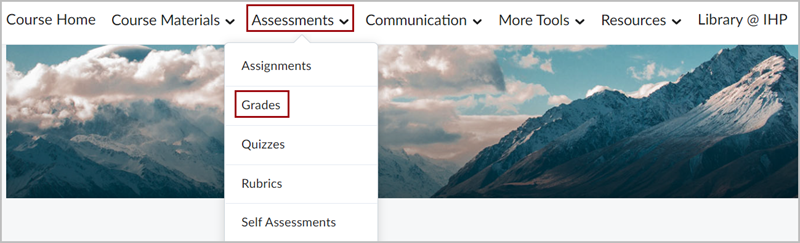
Go to your course and from the Assessments drop-down menu click Grades.
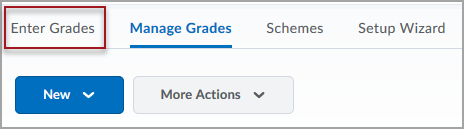
Click on Enter Grades.
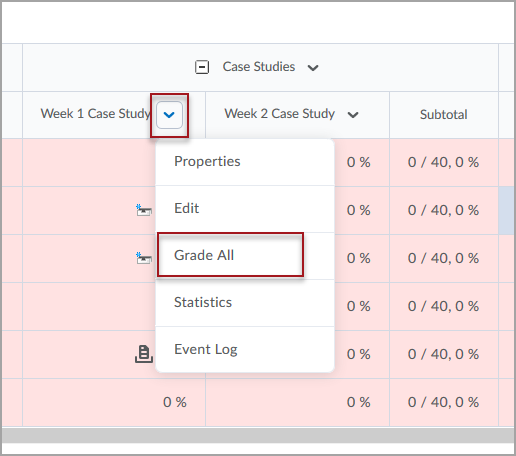
Next to the item you would like to grade, click the drop-down menu and select Grade All.
*Note: You can enter grades directly from the Enter Grades screen by click Switch to Spreadsheet View.
Clicking on Grade All allows you to narrow your view and enter grades for an individual item.
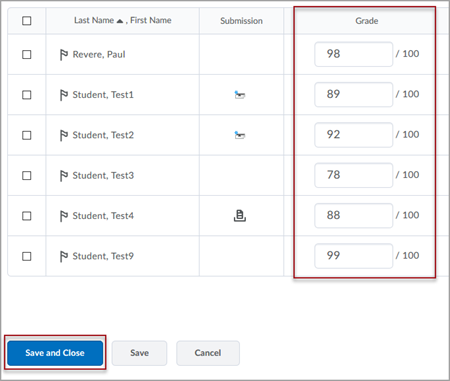
Enter grades for each student and click Save when finished.