Overview
D2L Lumi Pro is an AI-powered tool that can help you develop quiz questions and discussion topics within D2L Brightspace. The tool will generate quiz questions and discussion prompts at a selected level of Bloom’s Taxonomy based on your selected course content. You are required to review and edit questions (as needed) before you can add the questions/prompts for use with learners. This keeps your expertise in teaching and in the content area front and center for our students.
What you need to know…
- Use of D2L Lumi Pro is optional and only available to instructors.
- To ethically use D2L Lumi Pro:
- Do not enter copyrighted content or intellectual property you do not have permission to use into a generative AI tool.
- Do not enter personally identifiable information or sensitive data into an AI tool, including data that may be used to extrapolate sensitive information.
Generating quiz questions
- From the Quizzes tool, navigate to the Question Library tab
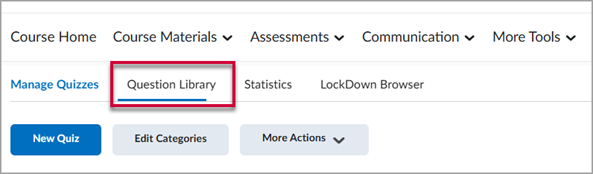
- In the Question Library, select the Generate Questions link, denoted by the sparkle icon.

-
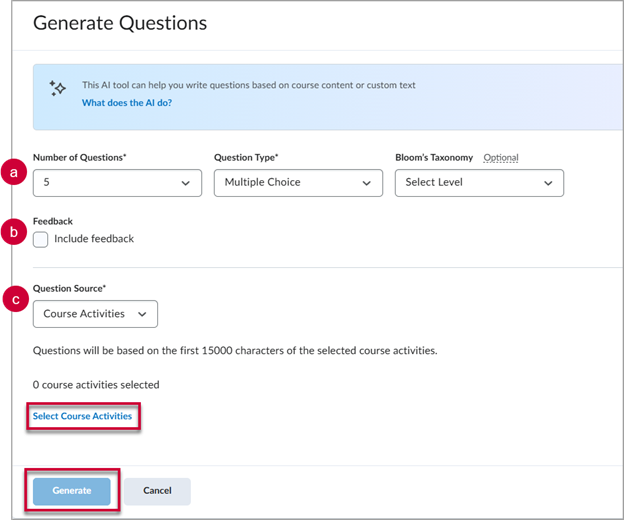
In the Generate Questions pop-up window, you’ll enter the following information
- The number of questions, type of questions (i.e., Multiple Choice, Short Answer), and the level of Bloom’s Taxonomy you want for the questions (optional)
- Whether or not you want feedback generated for each question/response option.
- The Question Source, which can be up to 5 content items within your course. Make sure to select the Select Course Activities link to choose the content items.
Once you have selected the desired options, click the Generate button at the bottom of the window.
-
Lumi will now generate questions according to your specifications. This may take a few minutes. Once the questions are generated, you must review the questions for quality and accuracy. D2L Brightspace will not allow you to use the questions without reviewing them.
To start reviewing questions, click the Pending Review links next to the questions.
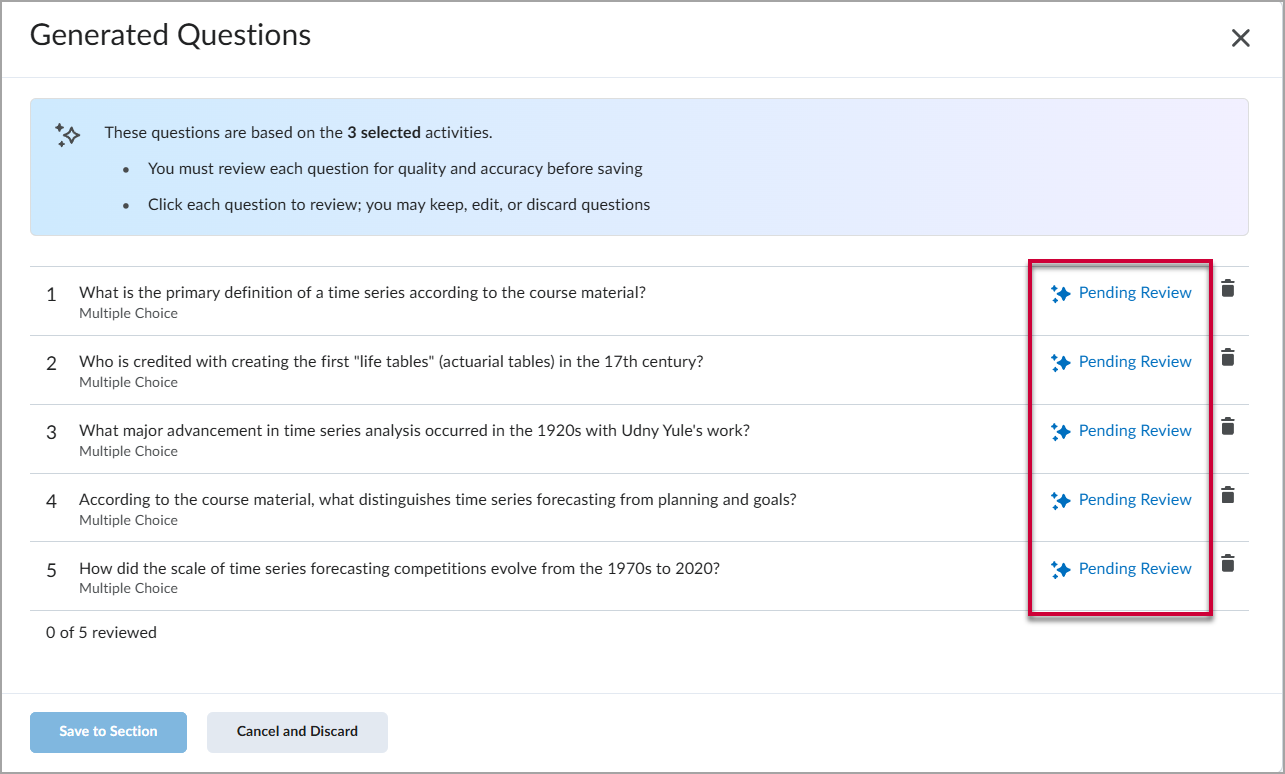
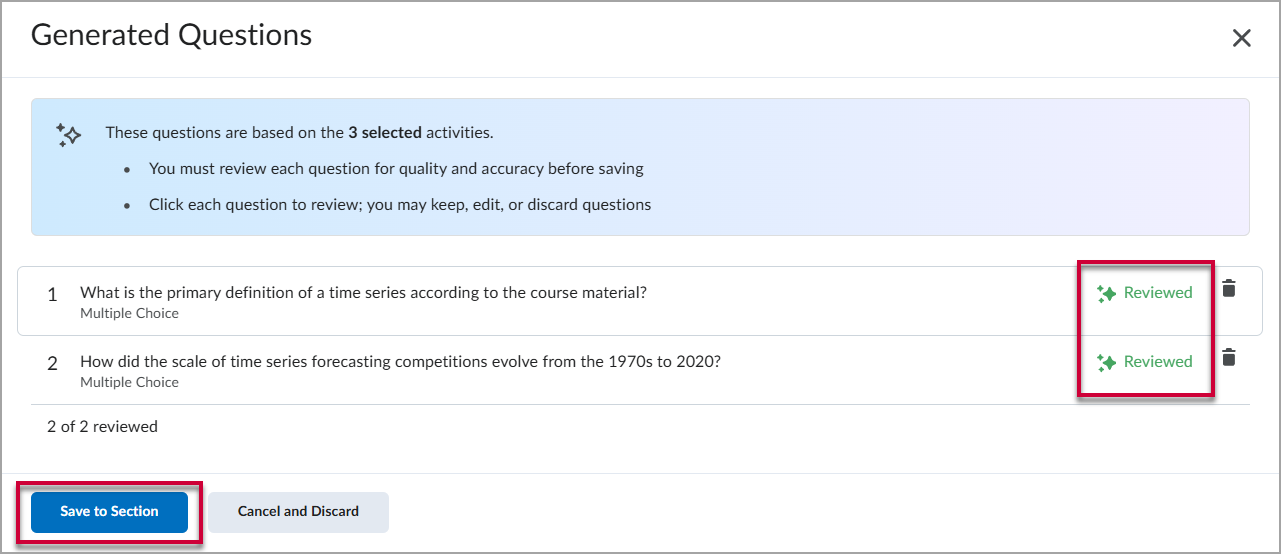
- Once you have reviewed and either approved/edited/deleted the questions, you’ll notice that the question(s) are labeled with a green “Reviewed” link. When you are ready, select the blue Save to Section button to continue.
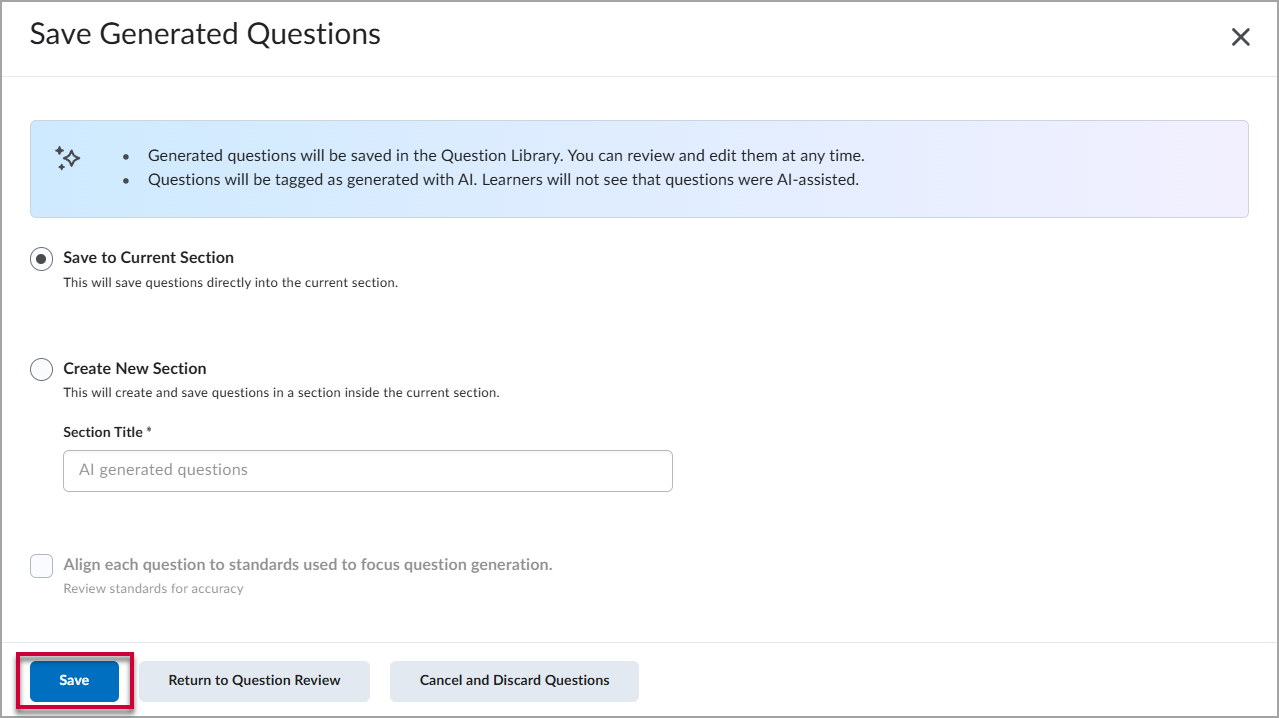
- Since you are creating these quiz questions in the Question Library, you will next select where you want the questions saved. You can either “Save to Current Section” or “Create New Section” with a title you enter. Once you have selected the appropriate option, select the blue Save button at the bottom of the window.
- With the questions now in the Question Library, you can add them to one or multiple quizzes by following the instructions on the following page of our D2L Brightspace help site: Creating a Quiz – Adding Quiz Questions
Generating discussion topics
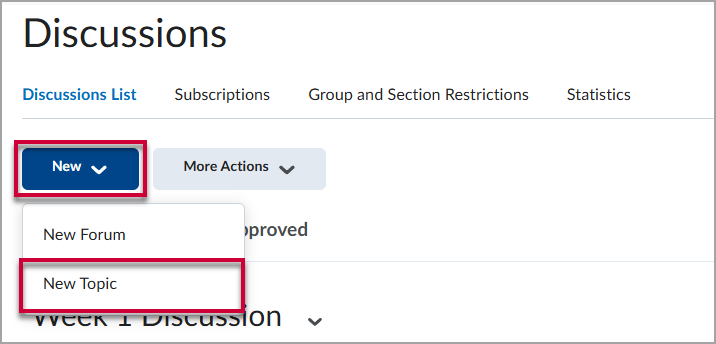
- From the Discussions tool, create a New Topic.
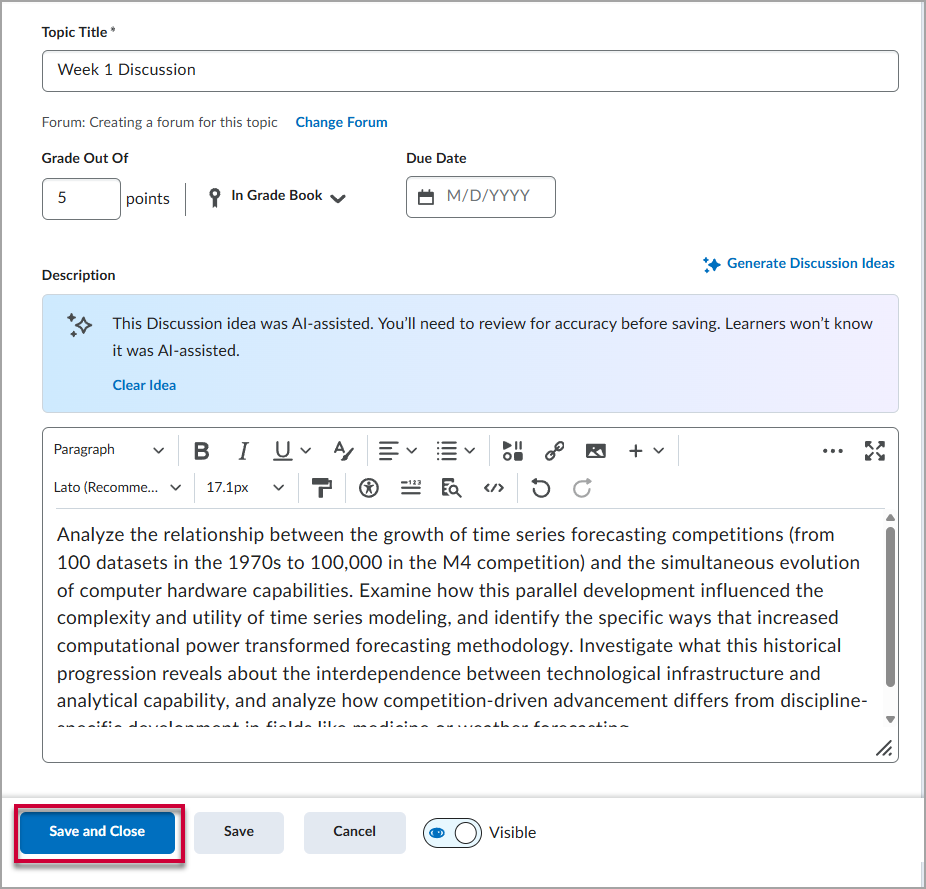
- From the Discussions creation page, select the Generate Discussion Ideas link (with the sparkle icon next to it). A pop-up window will open.

- In the “Generate Discussion Ideas” window, select the number of ideas you’d like generate and the level of Bloom’s Taxonomy (optional). You will also Select Course Activities to tell Lumi on which content item to base the ideas.
When you have the settings and content selected, select the blue Generate button at the bottom of the page.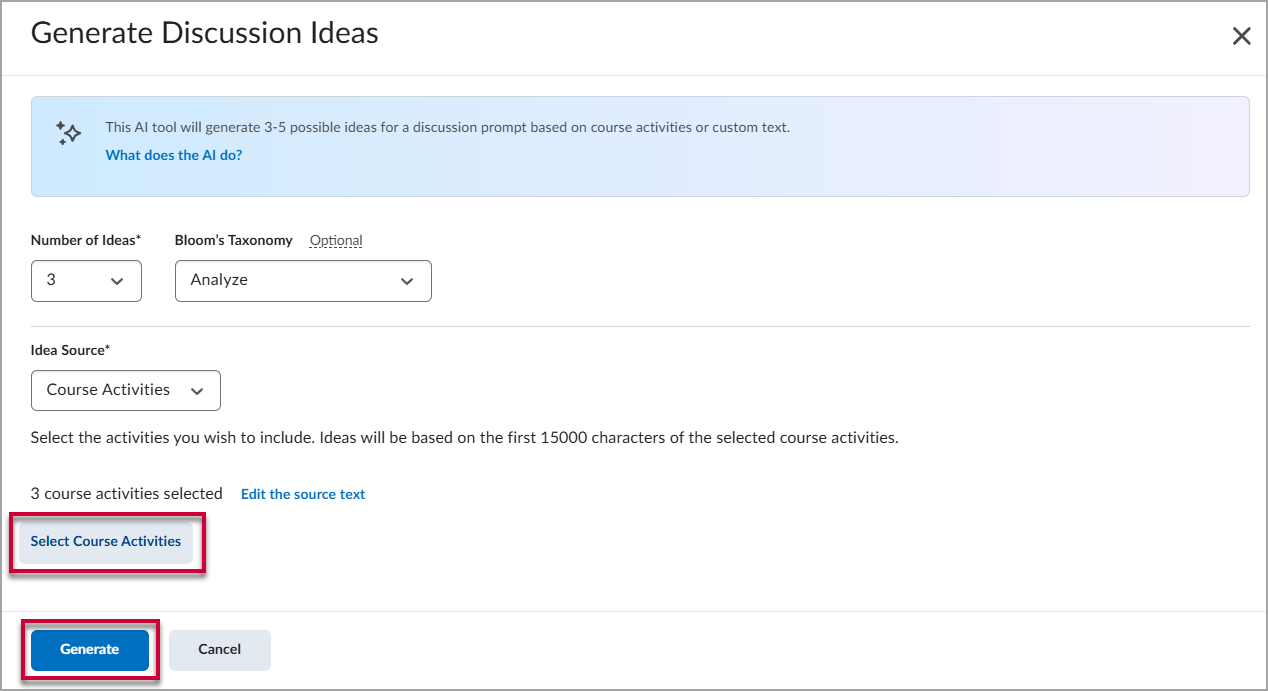
- Lumi will now generate discussion ideas according to your specifications. This may take a few minutes. Once the ideas are generated, you can select one to use (and edit later if desired). Select the idea and then select the blue Insert button at the bottom of the window.
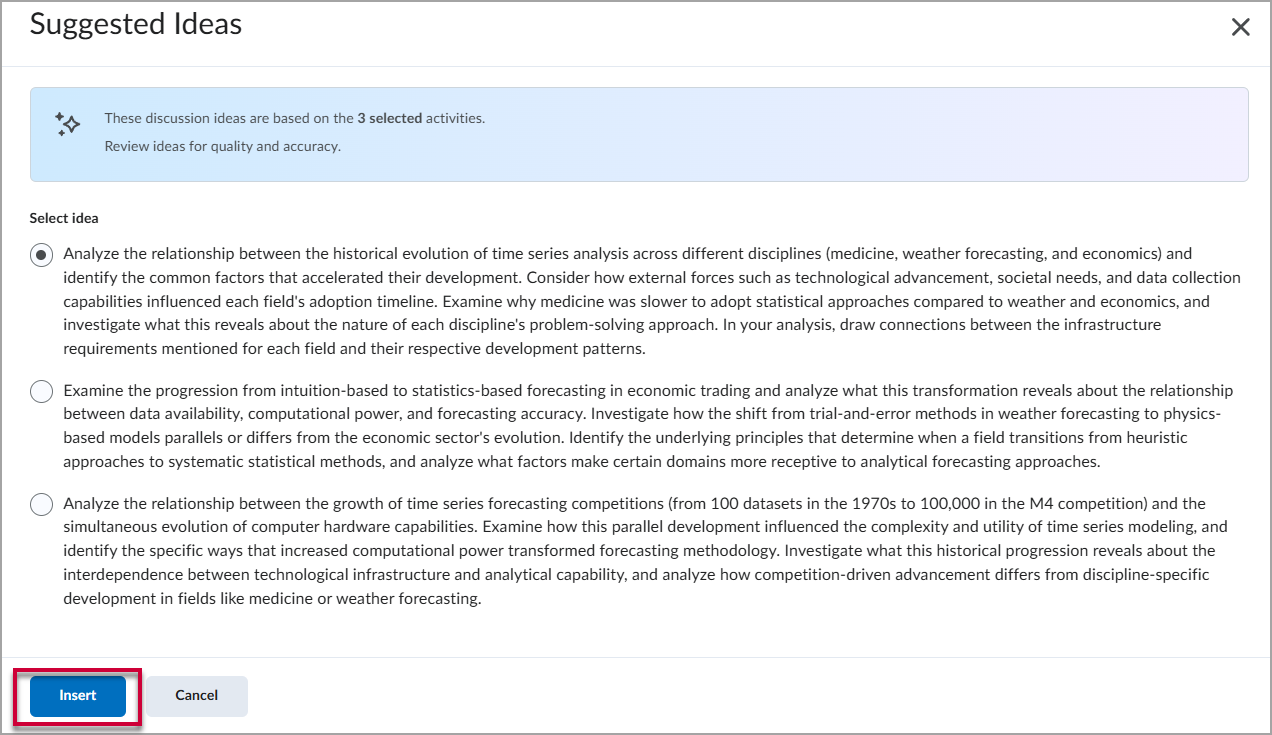
- Finally, you can review and edit the discussion idea as needed. When you are done, finish filling in the other Discussion information (e.g., Start Date) and select the blue Save and Close button at the bottom of the page.