Overview
D2L Lumi Practices is a generative AI feature built right into the Creator+ toolset. It allows you to automatically generate ungraded assessment questions based on your course content or your own separate text content. After generating a question, you can edit the question and answers as needed/desired.
D2L Lumi Practices currently supports the following question types:
- Dropdown
- Fill in the blank
- Multi-select
- Multiple choice
- True/False
What you need to know…
- Use of D2L Lumi Practices is completely voluntary and only available to instructors.
- To ethically use D2L Lumi Practices:
- Do not enter copyrighted content or intellectual property you do not have permission to use into a generative AI tool.
- Do not enter personally identifiable information or sensitive data into an AI tool, including data that may be used to extrapolate sensitive information.
Creating a question with D2L Lumi Practices
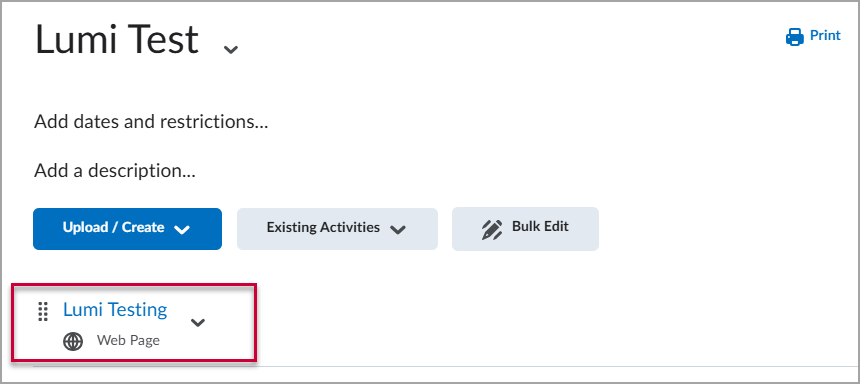
Step 1. From the Content tool, find and access the Content “Web Page” to which you want to add a Practice question.
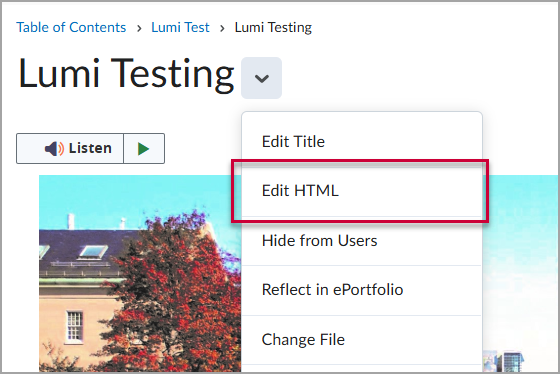
Step 2. On the page editor, click the dropdown next to the title of the page and select Edit HTML.
Step 3. Using the HTML editor, find the location on the page to which you want to add the question. Click the location so that your cursor appears there.
Step 4. Click the “paintbrush and pencil” icon (Creator+ Authoring Tools) in the toolbar. Then, select Insert Practice from the dropdown menu.
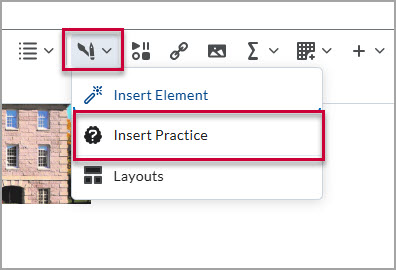
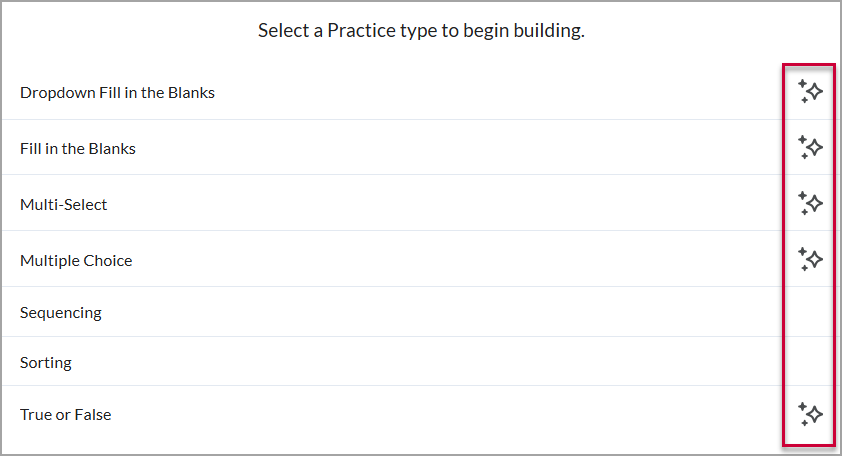
Step 5. In the “Insert Practice” menu, select one of the practice types that have the “stars” icon next to them. For this example, we will create a Multiple Choice question.
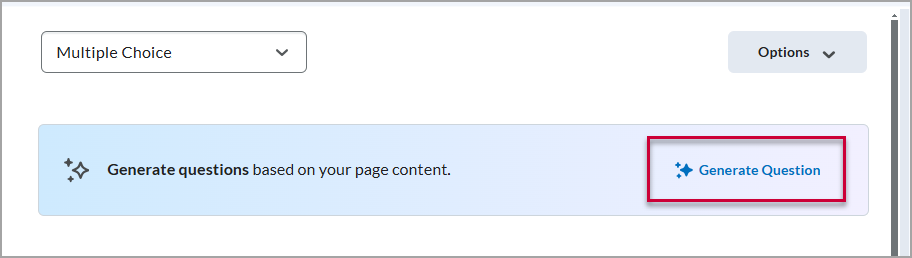
Step 6. Click the Generate Question button.
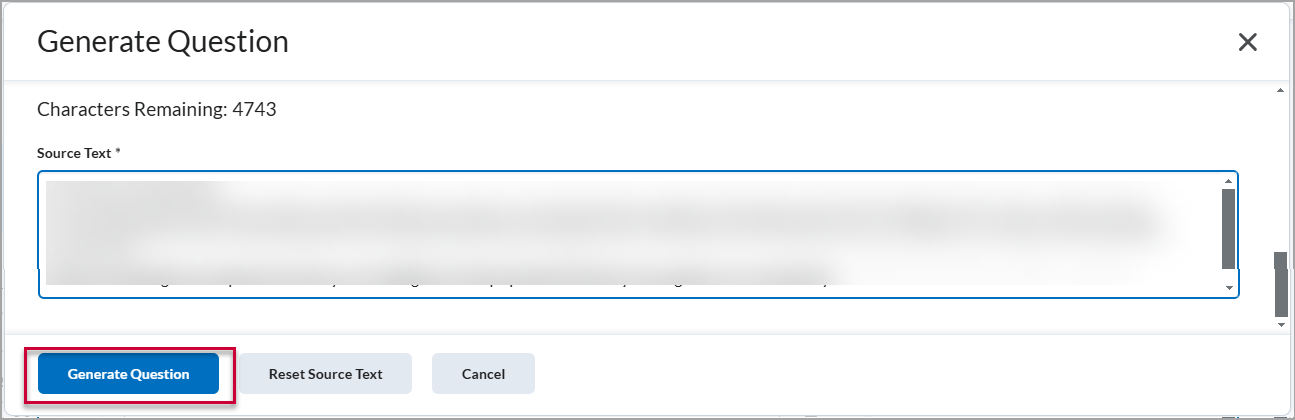
Step 7. Review the “Source Text” box, which automatically pulls in any text that already exists on the HTML page. Feel free to add or remove text that you would like to include/exclude as part of the AI prompt. When you are ready, click the blue Generate Question button. Question generation will take a moment.
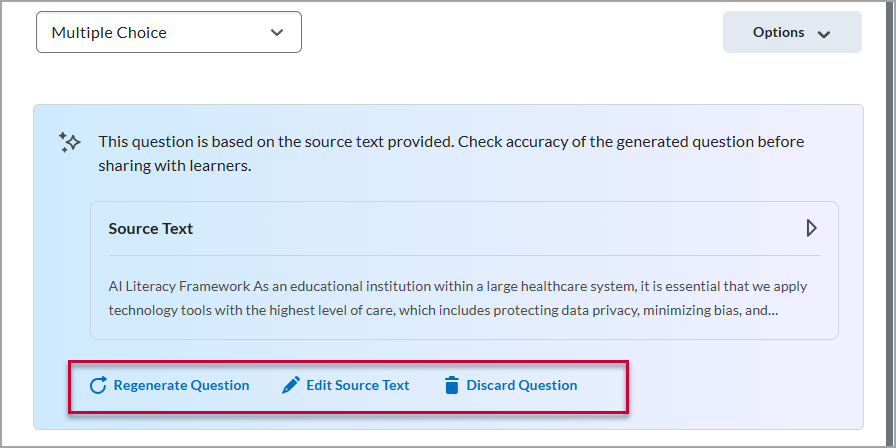
Step 8. Once D2L Lumi Practices returns a question, you can elect to do one of the following:
- If the question doesn’t suit your needs at all, you can choose to Regenerate Question, Edit Source Text, or Discard Question to get an entirely new question.
- If the question is close but needs adjustments, you can edit the “Question Text” and/or “Answers” to improve the question. Once you are happy with the question, click the blue Insert button at the bottom of the page.
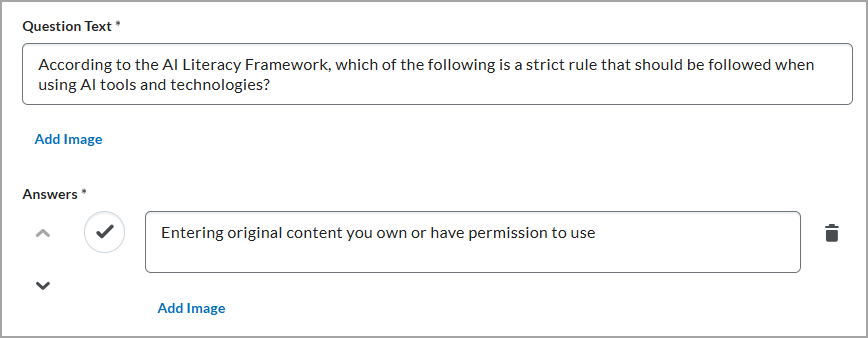
- If the question is good as is, simply click the blue Insert button at the bottom of the page.
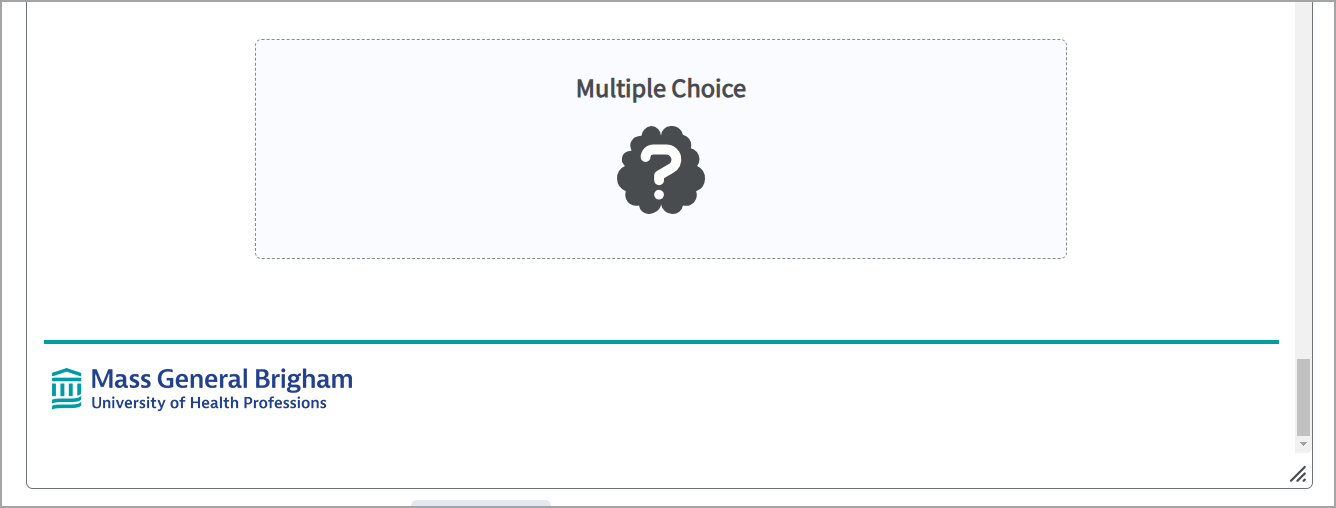
Step 9. Once you click Insert, your practice question will be added to the page, displaying as a box with a “question mark icon” in it. Select the blue Save and Close button to finalize and view the page as it will appear to learners.