Overview
In some cases, you may want to export survey data from D2L Brightspace to an Excel sheet or CSV file, as having the data in these formats can allow you to do more advanced statistical analyses on them. You can export data at both the aggregate and individual levels through the “Reports” function of the survey tool. The instructions on this page describe how to set up Reports in the Survey tool and export the data.
Note: If a survey is anonymous, you can still get individual level data from D2L Brightspace. However, each user in the data set will be labeled as User 1, User 2, etc., instead of by their actual name/username.
Instructions
Go to the Survey tool in D2L Brightspace and Edit the survey.
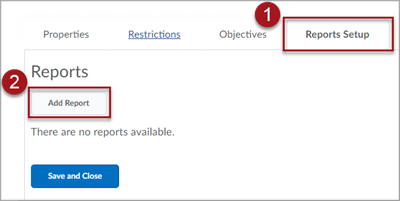
On the “Edit Survey” screen, click the Reports Setup tab. Then, click the Add Report button.
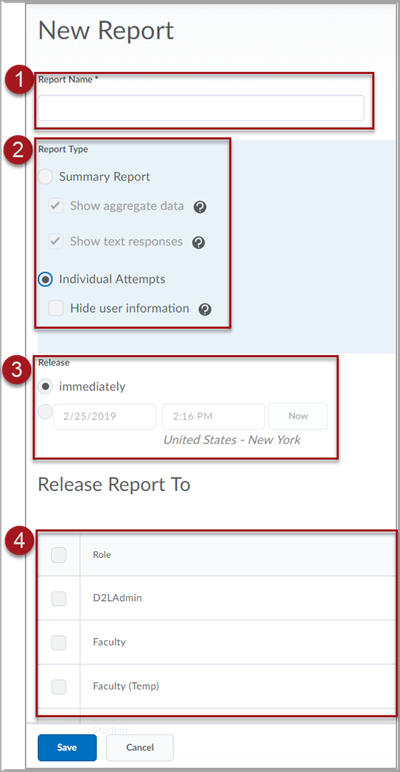
Create the new report by entering the following information:
- Report Name
- Report Type – Decide whether this report will contain an overall summary of the data or each individual user’s responses to all questions.
- Release – Decide when this report should become available: immediately or at a future date and time.
- Release Report To – Decide what roles in your course should be able to view the report. Typically, you will limit this to Faculty and Program Staff only.
Once you have entered the information, click the blue Save button at the bottom of the page.
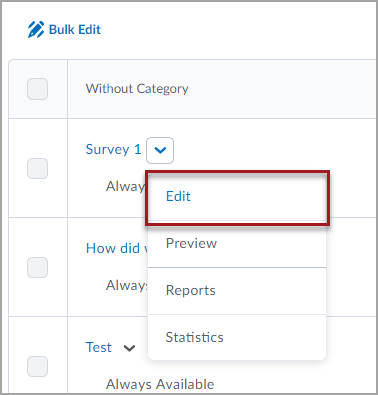
Then, return to the Survey tool, click on the dropdown next to the survey you would like data from, and click Reports. This will take you to a new page.
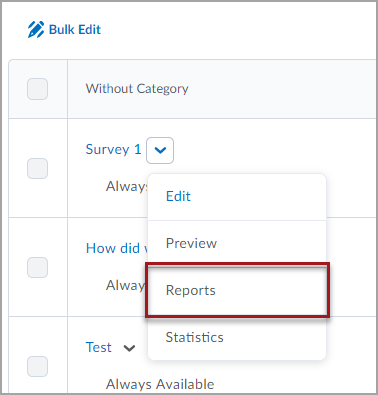
Click the name of the report you created in previous steps.
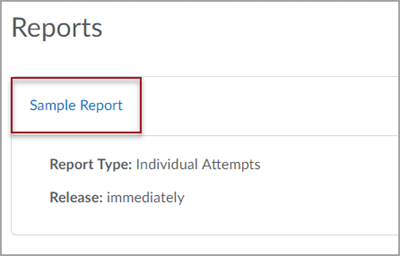
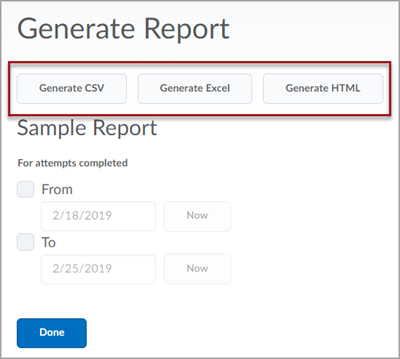
Click the button corresponding to the type of file you want the data saved as. You can Generate CSV, Generate Excel, or Generate HTML. You may want to generate an HTML file first to make sure that any CSV or Excel file is getting all of the data you need. Once you click a button, the file will download to your computer through your browser.