Overview
Documents (PDF’s, Excel, Word and Power Point Presentations) are now accessible via Doc Reader, a text to speech tool available in the content section of your course.
What you need to know…
The video below details what docReader is and how it can be used in your course.
How to use docReader
In the Content area of D2L Brightspace select one of the supported docReader documents.
Underneath the document you will find the docReader button.
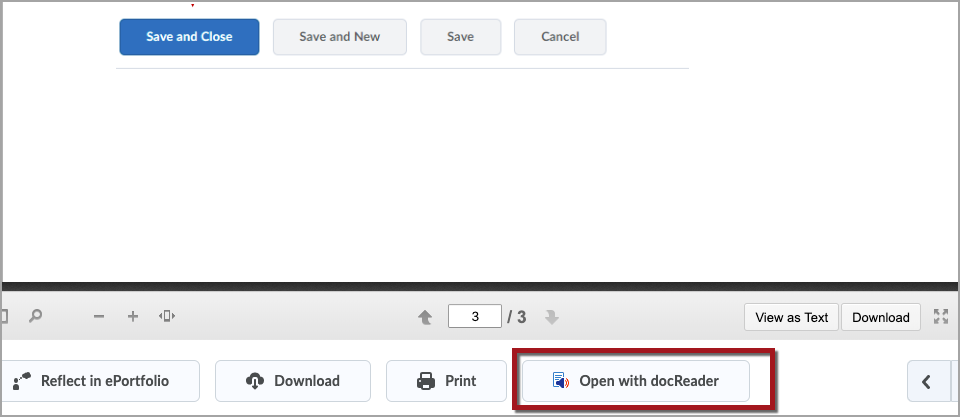
Once docReader has been selected the document will appear within the docReader window.
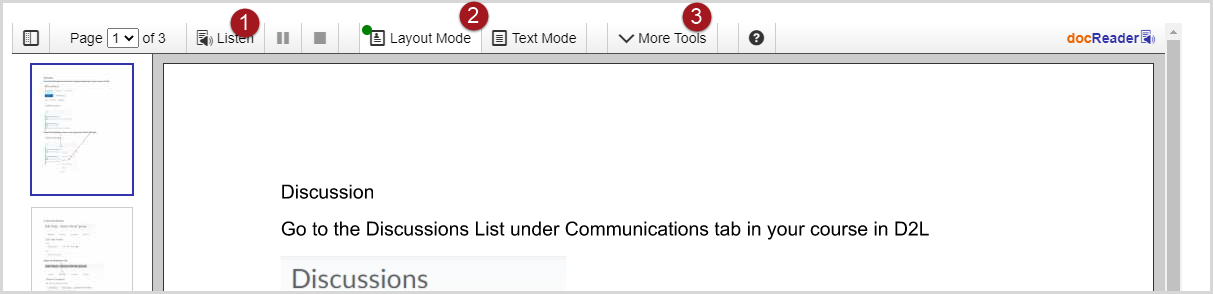
The docReader view allows you to do the following:
1. Listen – docReader will highlight lines of text and read along with the highlighted portions.
Pause – Pause the text to speech function but maintain where you left off in the document.
Stop – Stop the text to speech function.
2. Layout Mode – Maintain original formatting of document.
Text Mode – Remove formatting to just display text.
3. More Tools selection allows for the selection of a new set of tools in docReader.
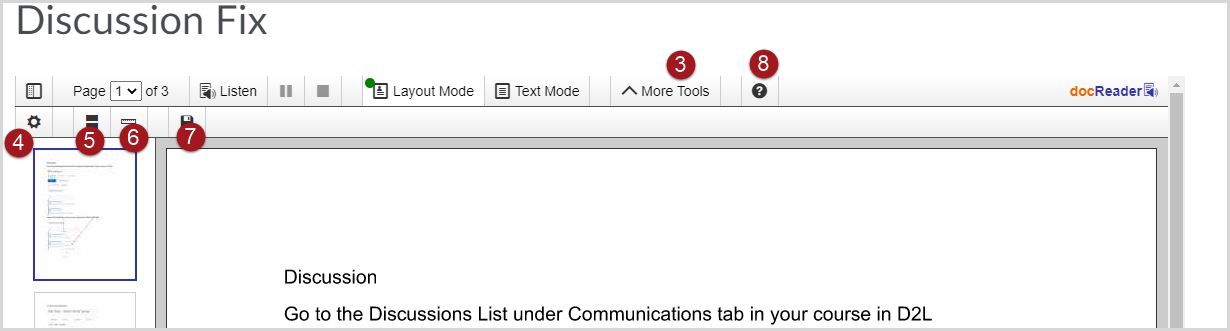
4. Settings – Opens the Settings window in docReader.
5. Page Mask – A reading tool that brings out a horizontal bar on the screen by masking the rest of the screen above and below it. The user can move it down along with the reading for better focus.
6. Reading Ruler – A reading tool that brings out a gray horizontal bar on the screen that can be moved along under the text as it is being read, to help the reader focus on the line being read.
7. Save Button
8. Help Button