Overview
For a more streamlined Course Home page Announcement area, you can Dismiss or Delete announcements from the area.
- Dismissing an Announcement will hide the announcement from you only.
- Deleting an Announcement removes the Announcement from you and students completely.
One of the more common situations we see occur is when faculty copy all components of a course from a previous semester and ‘dismiss’ the previous semester announcements thinking they are removed for everybody when in fact students can still see those announcements.
(Exception – an Announcement with an end date that has passed and thus has an ‘Expired’ status is also not visible to students)
Dismissing an announcement
To Dismiss an Announcement from your D2L Brightspace My Home or Course Home page click the X on the right side of the announcement.
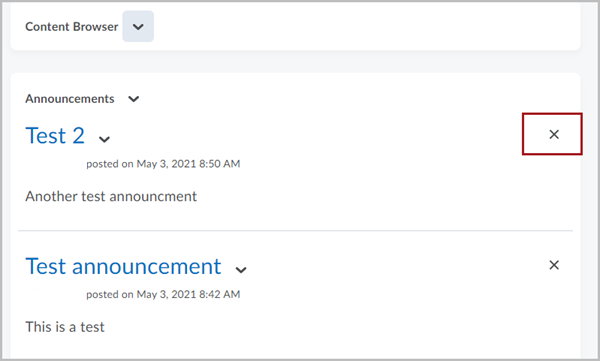
Once the X is selected, the Announcement is ‘dismissed’ and will disappear from the Course home page for you only.
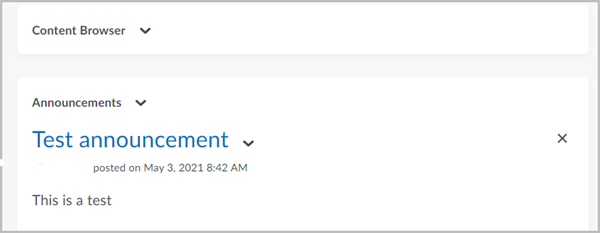
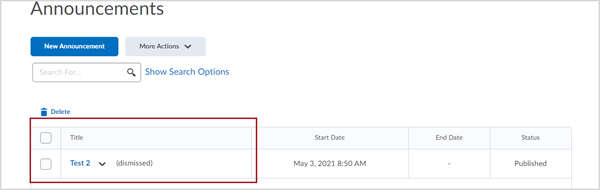
The Announcement will still be visible to students and others in their Announcement widget (unless they dismiss it for themselves) and is still accessible by all in the Announcements tool which is accessed under the Communications dropdown along the course navigation bar.
Deleting an announcement
To Delete an Announcement from your course in D2L Brightspace, select the drop-down carat beside the Announcement title and select Delete.
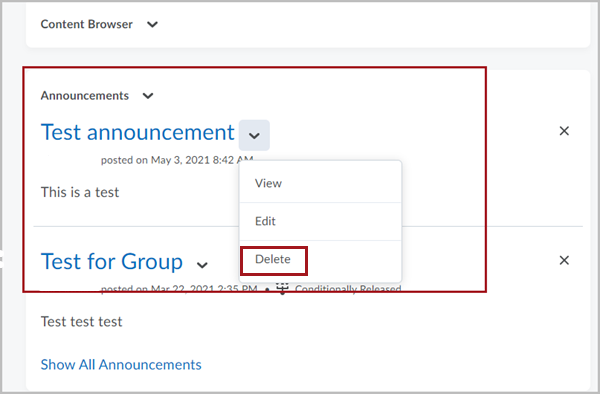
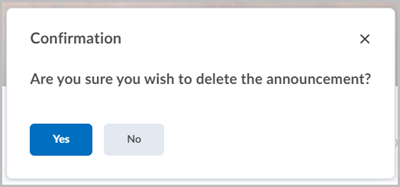
Once Delete is selected a Confirmation popup will appear. Once Yes is selected, the Announcement is permanently removed from your course. Neither you nor your students will be able to see it any longer.