Menu Close

Adding Special Access to an Assignments Folder

​Overview

Students who receive accommodations or have an excused absence may need additional time to complete an assignment and/or may need to complete the assignment on a date different from the rest of the class.  Special access allows you to change the assignment restrictions for specific students to accomplish this.


Instructions

Step 1. From the Assignment Creation Folder screen, click on the Availability Dates and Conditions pane.
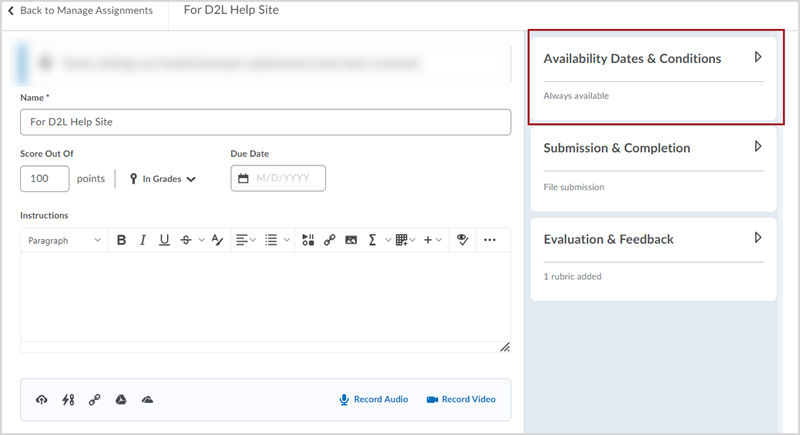
Edit Assignments page in D2L Brightspace with a red box around the "Availability Dates & Conditions" panel on the right side of the page

The panel will expand.

Edit Assignment screen in D2L Brightspace with the "Availability Dates & Conditions" panel expand on the right side of the screen

Step 2. Click the Manage Special Access button in blue.
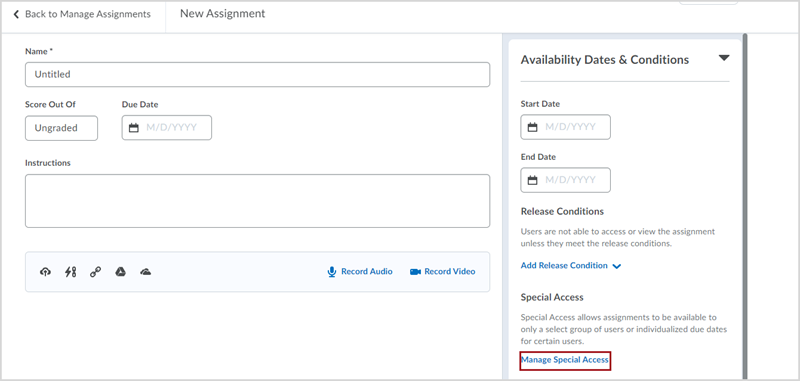
Expanded Availability Dates & Conditions panel with a red box around the link for "Manage Special Access"

Step 3. The Manage Special Access window will open.
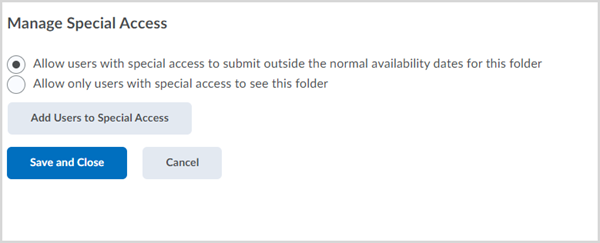
Manage Special Access pop-up window with buttons for "Add Users to Special Access", "Save and Close", and "Cancel"

Step 4. Select Add Users to Special Access button.
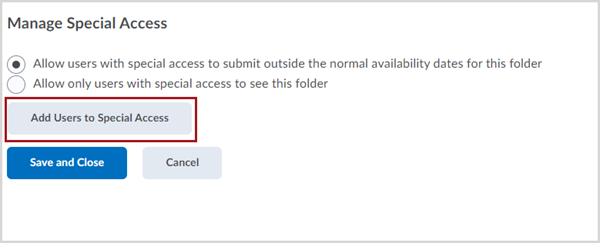
Manage Special Access pop-up window with a red box around the "Add Users to Special Access" button

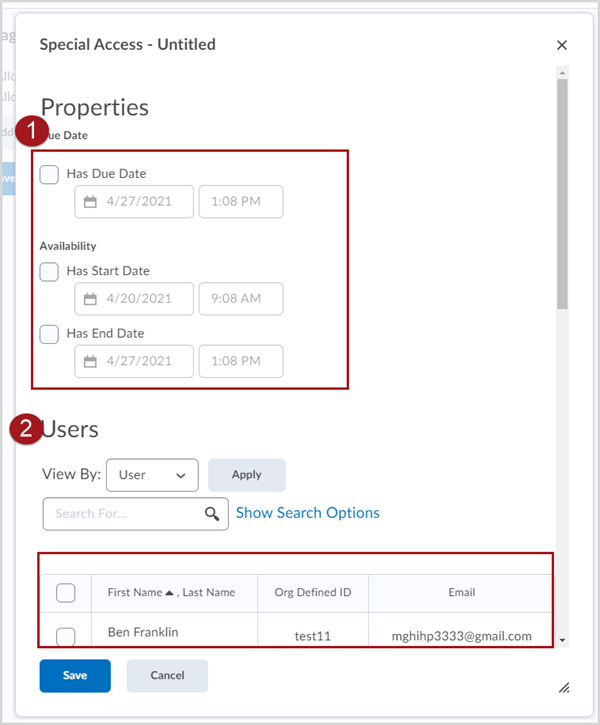
Step 5. The Assignment Special Access Add Users pop up opens.

  1. Fill in the appropriate dates
  2. Select Students that need special access
  3. Save the settings

​Labeled Special Access window with the due date, start date, and end date properties as well as the User list highlighted