Overview
When course shells are created in D2L Brightspace, they are automatically set to be inactive. When you are ready to make the course available to your students, you will need to make it active. Their are two ways to activate a course, either of which will work to activate your class:
From the My Home Page
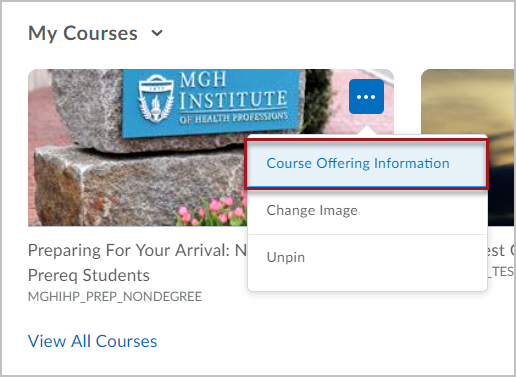
Click the “…” icon in the top right corner of the tile of the course you want to activate within your My Courses widget. You will need to hover over the tile to get the “…” icon to appear. Then, select Course Offering Information.
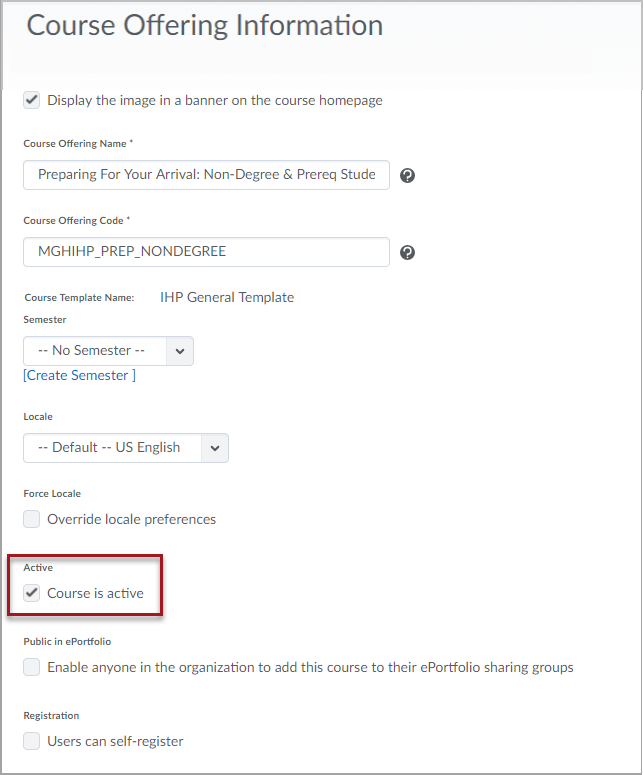
Check the Course is active check box – If you do not specify a start date, the course will be accessible to the student immediately. If you do enter a start date, the class will be available on the day you enter. Entering an end date will deactivate the course, making it inaccessible to students on the given date.
From your Course Homepage
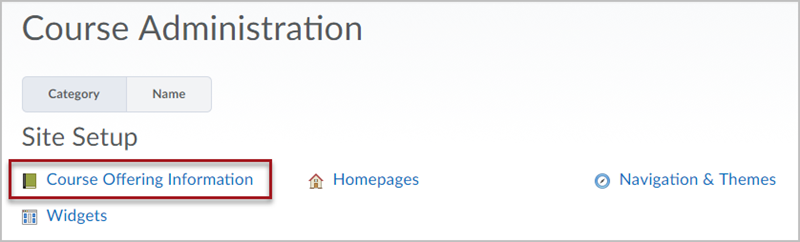
In your course, click Course Admin from the More Tools drop-down menu in the navigation bar.

Click the Course Offering Information link located under the Site Setup heading.
Check the Course is active check box – If you do not specify a start date the course will be accessible to the student immediately. If you do enter a start date, the class will be available on the day you enter. Entering an end date will deactivate the course, making it inaccessible to students on the given date.
Click Save.